Independent guide · checked against RetroBar 1.22.122
The classic Windows taskbar, back on Windows 11.
RetroBar replaces the Windows 10 and 11 taskbar with the Windows 95, 98, Me, 2000, XP or Vista one. It is free and open source, by Sam Johnson (dremin). This site shows every theme on real Windows, explains every setting, and fixes what goes wrong.
- 917k downloads
- 4.4k GitHub stars
- 19 themes
- 47 languages
- Free · Apache-2.0
What you get
Five parts, all classic
RetroBar draws the whole taskbar itself, in the theme you choose. Hover a card to find that part on the bar; each one links to the settings that change it.
Start button
Opens the Windows Start menu, or Open-Shell’s classic menu if you install it. RetroBar has no Start menu of its own.
Quick Launch
Small one-click icons. It shows the apps you pinned to the Windows taskbar, because it reads the same folder. Drag icons to reorder them.
ShowQuickLaunchOn or offQuickLaunchPathWhich folder it showsTask buttons
One button per open window, as in Windows 95 to XP. Drag them into the order you like. Middle-click opens another copy of the app by default.
RowCountRowsShowTaskThumbnailsWindow previewsTaskMiddleClickActionMiddle-clickNotification area
Your notification icons. Choose which ones always show and which hide behind an arrow, and whether they are drawn light or dark to suit the theme.
CollapseNotifyIconsXP-style hide arrowNotifyIconBehaviorsPer-icon behaviourInvertIconsModeLight or dark iconsClock
Hover for the full date. Clicking it opens the Windows notification centre on Windows 10 and 11, or a calendar if you prefer.
Start here
From download to your favourite era in five minutes
Fixes
When something is not right
The problems people ask about most, ranked from RetroBar's own issue tracker, with the fix that works on 1.22.122.
- The Windows taskbar still showsTwo taskbars, or the Windows one pops up over RetroBar.
- RetroBar stays on top of full-screen videos and gamesThe most reported bug class, and what still helps.
- The Start button does nothing, or opens the wrong menuWindows Start, Open-Shell and the Windows key.
- Wi-Fi, volume or battery icons are missingWhy Windows 11 hides them and how to bring them back.
- A downloaded theme looks brokenMissing Start button or blank images: the resources path.
- RetroBar will not startThe .NET 10 Desktop Runtime and other first-run errors.
How this site works
Tested on Windows, not copied from a README
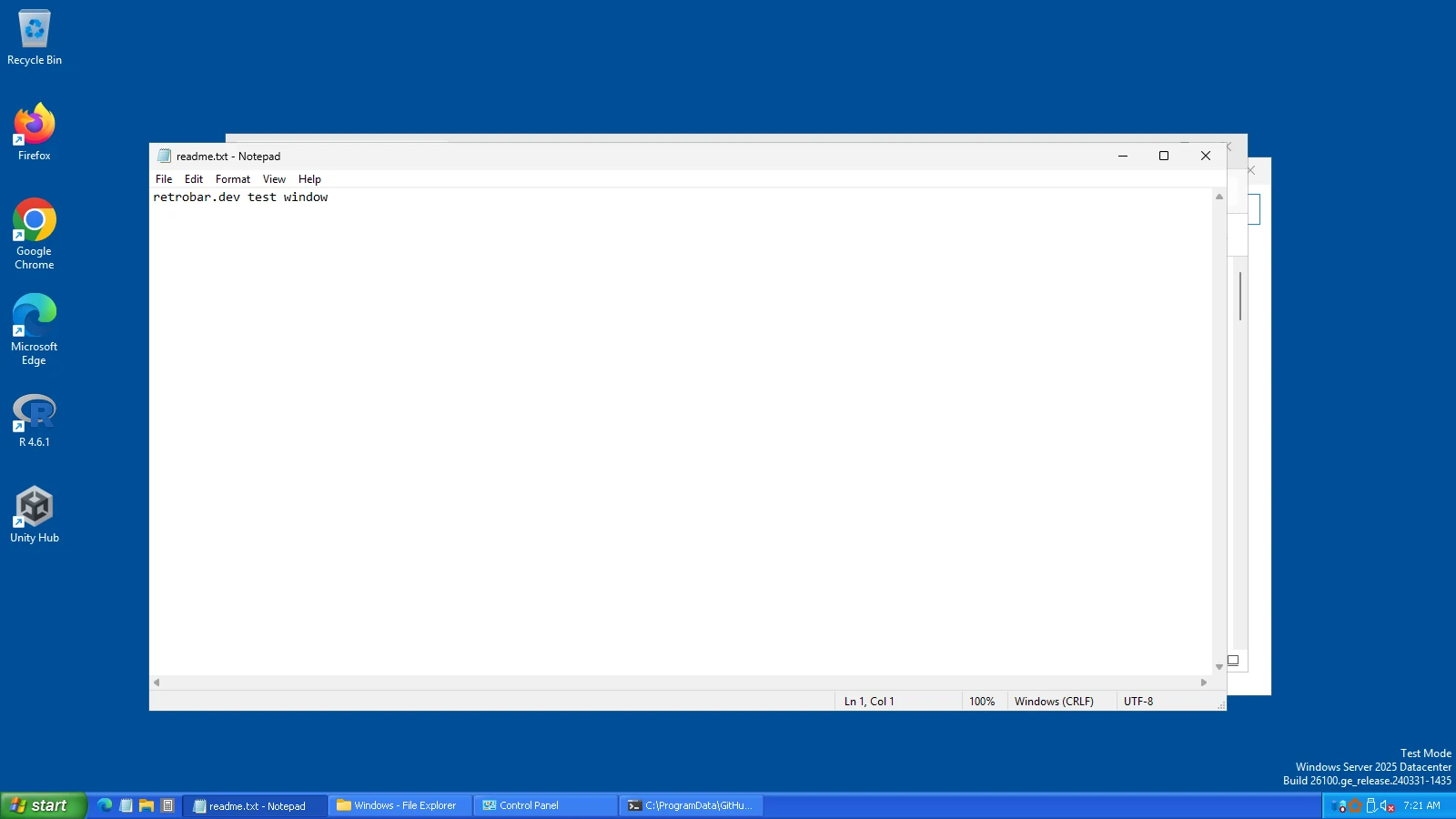
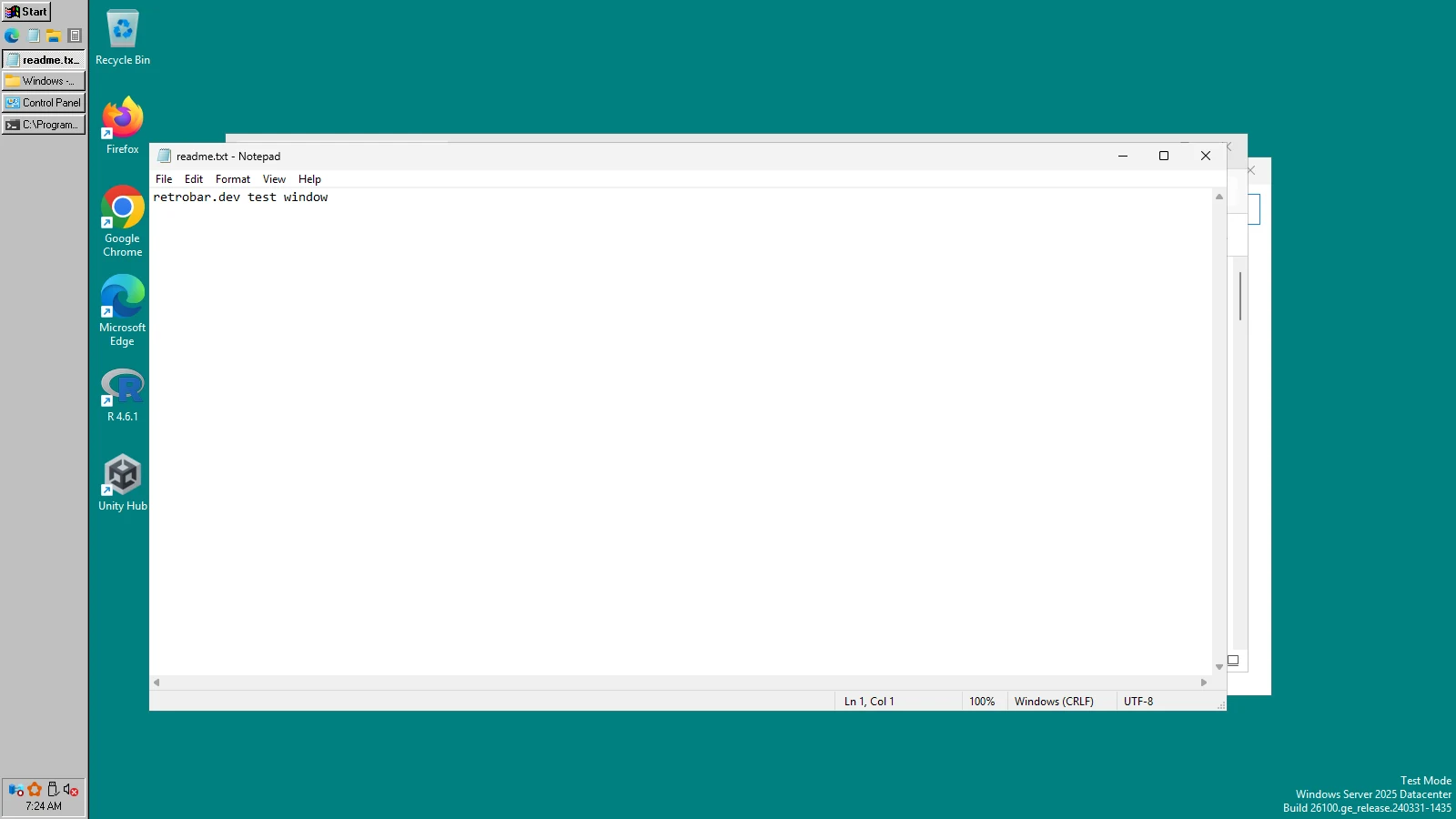
Every screenshot of RetroBar on this site comes from our own test runs. A script installs the official RetroBar 1.22.122 on clean Windows 11 and Windows Server machines, switches through every theme, edge, size and setting we write about, and saves the screen. The raw logs and settings files are published with the results.
Facts about RetroBar itself (settings, themes, file hashes, release history) are generated from the release's source code and files, and checked again with every new version. Where the source and the tests disagree, the tests win, and we say so.
- Downloaded from the official GitHub release, hashes checked
- Installed with the real installer on Windows 11 (Arm64) and Windows Server 2025 and 2022
- All 19 themes, four screen edges, rows, width and scale captured
- Custom-theme folders and paths tested to find out what really loads
- Uninstalled again, and what it leaves behind recorded
Good to know
What RetroBar does not do
It has no Start menu. Its Start button opens the Windows one. For a classic menu, add Open-Shell; our Start menu guide has presets that match each RetroBar theme.
It does not change windows. Title bars, File Explorer and dialogs keep the Windows 11 look. RetroBar is the taskbar only; see what to combine it with for the rest.
It does not change Windows files. It runs as a normal app for your user account. Exit it, and Windows' own taskbar comes back.
It is Windows only. Windows 7 SP1, 8.1, 10 and 11. There is no Mac or Linux version.
Free tools
Tools that run in your browser
Questions
Is RetroBar free?
Yes. RetroBar is open source under the Apache License 2.0, made by Sam Johnson and its contributors. There is no paid version, no ads and no account.
Does RetroBar work on Windows 11?
Yes. 1.22.122 supports Windows 11 and 10 (x64, Arm64 and, on Windows 10, 32-bit), and Windows 7 SP1 and 8.1 through separate builds. We test it on Windows 11 on every release.
Is RetroBar safe?
The official download from GitHub is the open-source app built by its author. It is not code-signed, so Windows SmartScreen warns about an unknown publisher. Our safety page explains what it does on your PC and what scanners say.
How do I get my normal taskbar back?
Right-click the RetroBar taskbar and choose Exit RetroBar; the Windows taskbar returns. To remove it for good, uninstall it from Settings › Apps. See how to uninstall RetroBar.
Is this the official RetroBar website?
No. RetroBar's official home is its GitHub page, github.com/dremin/RetroBar. retrobar.dev is an independent guide; every download link points to that GitHub page.