Make it complete
A classic Start menu with RetroBar
RetroBar gives you the classic taskbar, but its Start button opens the Windows 11 Start menu. For the matching menu, add the free Open-Shell. We made three Open-Shell presets that match RetroBar's themes and tested each one on Windows with RetroBar 1.22.122.
On this page 5 sections
Short answer
How do I get a classic Start menu with RetroBar?
Install Open-Shell (only its “Open-Shell Menu” part), download the preset for your RetroBar theme below, and load it in Open-Shell Settings › Backup › Load from XML File…. RetroBar's Start button and the Windows key then open the classic menu.
How RetroBar's Start button works
RetroBar has no Start menu of its own. When you click its Start button, it sends a press of the Windows key, as we confirmed in its source code. Whatever opens on the Windows key opens on RetroBar's Start button too: the Windows 11 Start menu by default, or Open-Shell's menu once Open-Shell is set to handle the Windows key. That is why the one Open-Shell setting that matters most is Windows Key opens: Open-Shell Menu, which RetroBar's own README recommends.
Three presets, one per era
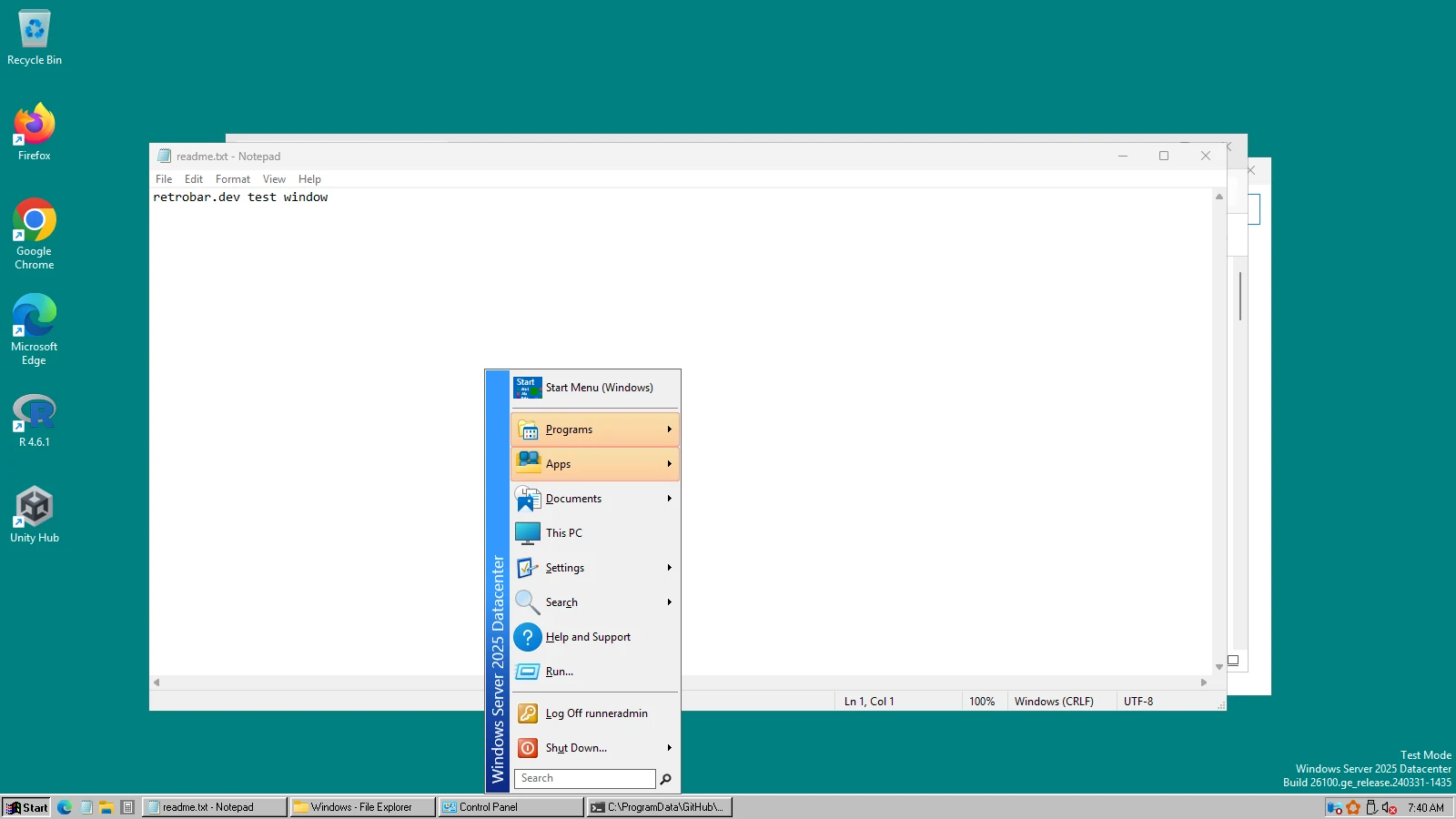
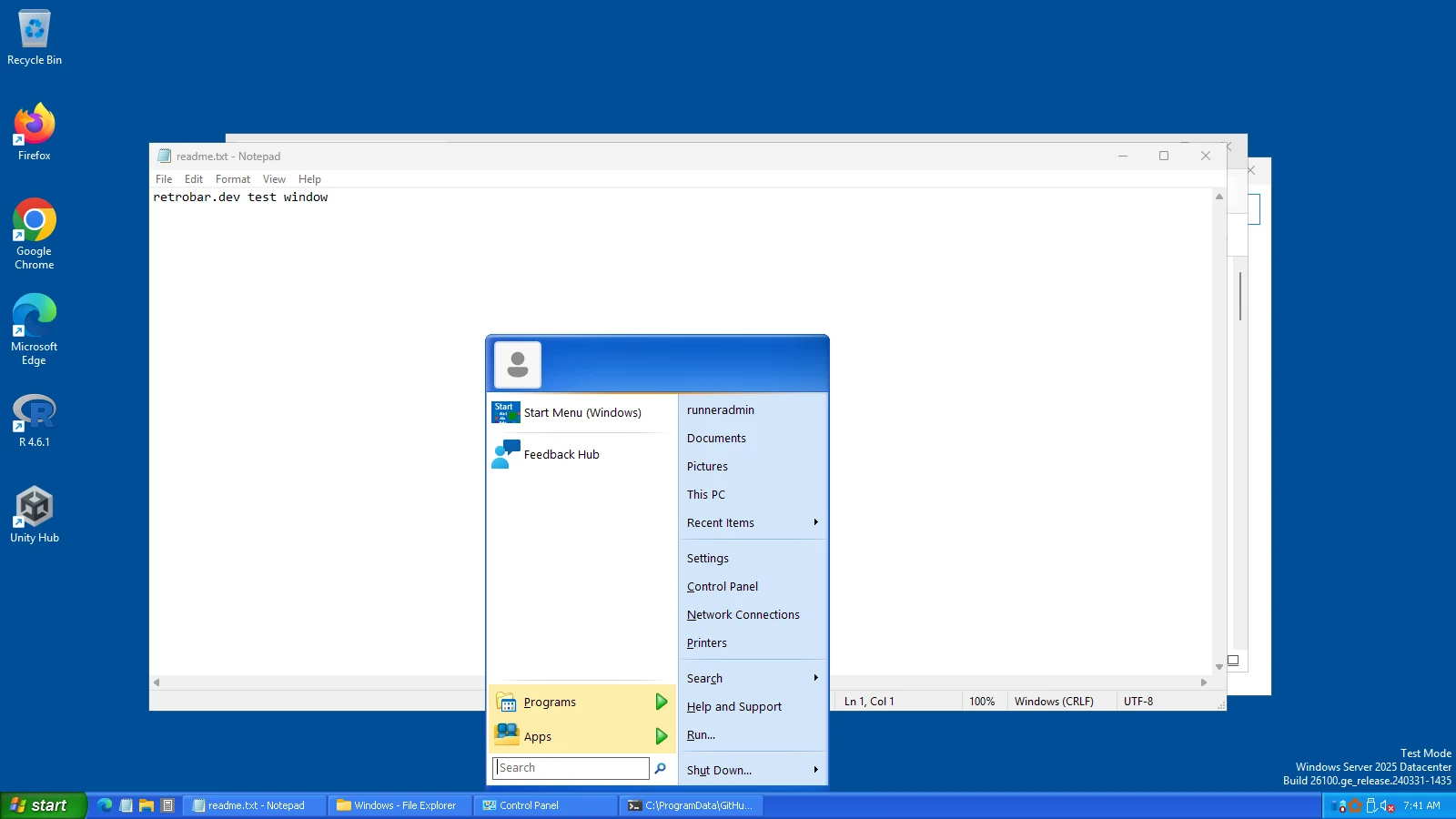
retrobar-classic.xml
retrobar-xp.xml

retrobar-vista.xml
Every preset sets the same four things besides the look:
| Open-Shell setting | Value | Why |
|---|---|---|
| Windows Key opens | Open-Shell Menu | RetroBar's Start button presses the Windows key, so this makes it open Open-Shell. Recommended in RetroBar's README. |
| Align start menu to working area | On | Places the menu against RetroBar's taskbar rather than where the Windows taskbar would be. Also from RetroBar's README. |
| Replace Start button | Off | RetroBar already draws the Start button that fits its theme. |
| Everything else | Open-Shell defaults | Loading a preset resets settings it does not list, so back up your own first if you have customised Open-Shell. |
Set it up, step by step
Download Open-Shell
From its official GitHub page, github.com/Open-Shell/Open-Shell-Menu/releases. We tested version 4.4.198, the latest stable release (later 4.4.2xx builds are marked pre-release). Like RetroBar, its installer is not code-signed.
Install only the menu
In Open-Shell's setup, keep Open-Shell Menu and untick Classic Explorer unless you also want its File Explorer toolbar. Open-Shell installs for all users and asks for administrator rights.
Load the preset
Open Open-Shell Menu Settings from the Start menu. Click Backup › Load from XML File… and choose the preset you downloaded. Click OK.
Try it
Click RetroBar's Start button, or press the Windows key. Both open the classic menu. The Windows 11 menu is still one click away: the first item, “Start Menu (Windows)”.
Prefer the command line? Open-Shell can load a preset without opening its settings, as our test script does. The path must not contain spaces:
& "C:\Program Files\Open-Shell\StartMenu.exe" -xml C:\Presets\retrobar-xp.xmlWhat we tested
On Windows 11 (Arm64) and Windows Server 2025 and 2022, our script installed Open-Shell 4.4.198 silently, loaded each preset with StartMenu.exe -xml, exported the settings again to check they had been applied, then started RetroBar with the matching theme, clicked RetroBar's Start button and pressed the Windows key. All three presets loaded on all three machines. RetroBar's Start button opened Open-Shell's menu in all nine cases; the Windows key did in eight. The exception, the Classic preset on the Arm machine, showed no menu in our screenshot after the key press, although the Start button worked there; we repeat that test in every run.

Open-Shell's settings as exported after each import: results.json (look for openShell).
Questions
Do I need Open-Shell to use RetroBar?
No. Without it, RetroBar's Start button opens the normal Windows Start menu. Open-Shell only matters if you want the menu to look classic too.
RetroBar's Start button does nothing with Open-Shell installed. Why?
Open-Shell's “Windows Key opens” is set to something other than the Open-Shell menu, or another tool intercepts the Windows key. Set it to Open-Shell Menu (our presets do), and check that the Windows key itself works. More in troubleshooting.
Can I use Open-Shell's own Start button instead of RetroBar's?
RetroBar always draws its own Start button, so Open-Shell's “Replace Start button” has nothing to replace and would sit on the hidden Windows taskbar. To change how RetroBar's button looks, use a different theme or a custom theme.
Is Open-Shell safe?
It is open-source software maintained on GitHub, the continuation of Classic Shell. Get it only from its GitHub releases page.
Keep going
Found something out of date or wrong? Tell us at hello@retrobar.dev and we will fix it.