Taskbar how-to
Move the taskbar to the top, left or right in Windows 11
For years Windows 11 kept its taskbar at the bottom. That is changing: since August 2026 Microsoft has been rolling out a setting to put it on any edge. Here is how to use it, what it cannot do yet, and how RetroBar does the same with a classic taskbar.
On this page 5 sections
Short answer
How do I move the taskbar to the top or side in Windows 11?
If your PC has the August 2026 update or later: Settings › Personalization › Taskbar › Taskbar behaviors › Taskbar position, then choose Top, Left or Right. The option is reaching PCs gradually, so it may not be there yet. Without it, or if you want a classic taskbar on the side, use RetroBar: right-click its taskbar › Properties › Location.
Windows 11's own setting
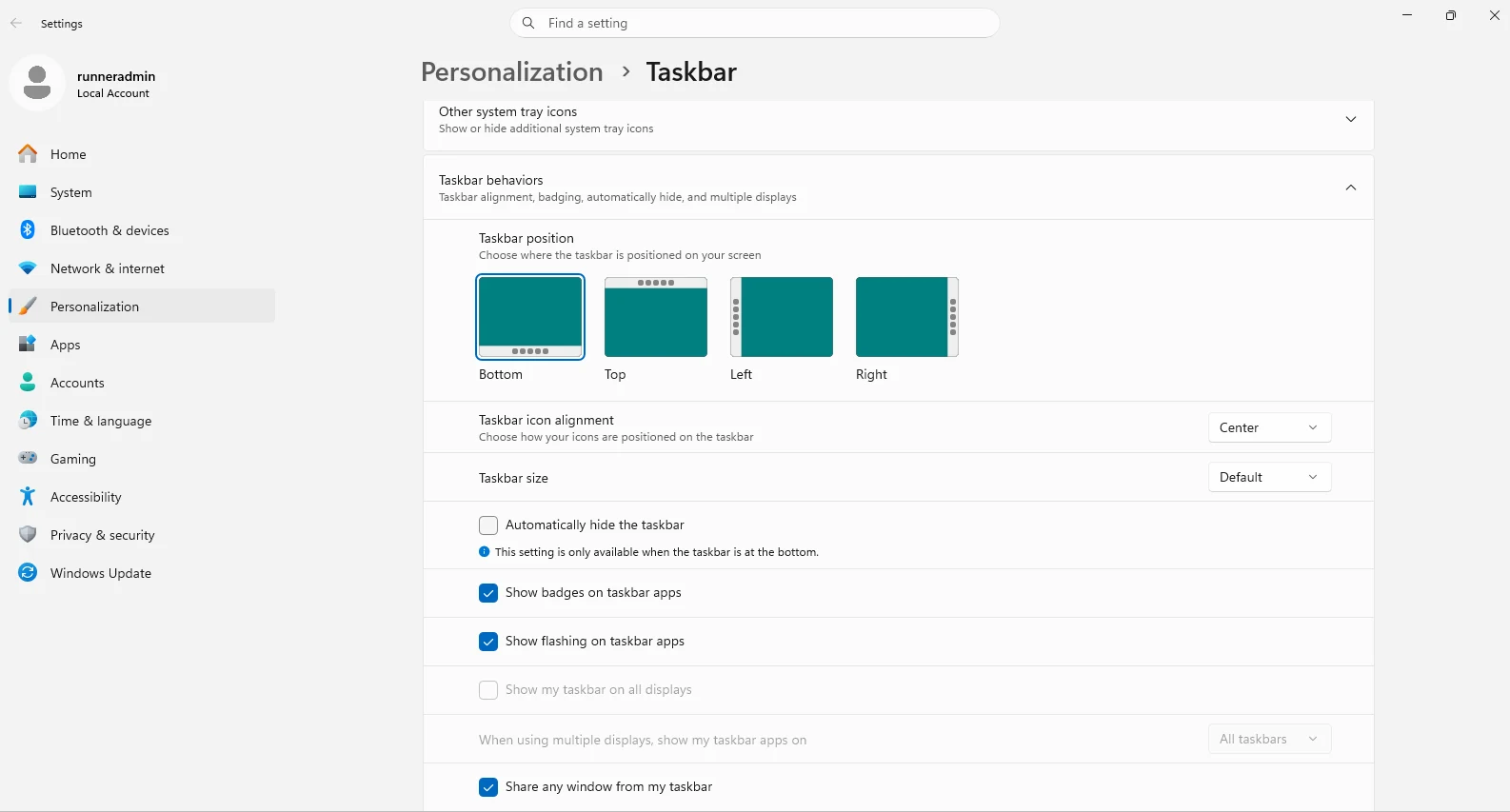
Microsoft added it in the optional update KB5120998 for Windows 11 24H2 and 25H2 (27 August 2026), then in the regular September update. Its release notes say: “You can now choose whether the taskbar appears at the bottom, top, left, or right side of your screen,” under Settings › Personalization › Taskbar › Taskbar behaviors › Taskbar position (Microsoft).
Open the taskbar settings
Right-click an empty part of the taskbar › Taskbar settings.
Find Taskbar position
Under Taskbar behaviors, choose Taskbar position: Bottom, Top, Left or Right.
Limits Microsoft lists: the search box and the smaller taskbar size only work at the top and bottom. In the Insider builds that introduced the feature, auto-hide and the touch-optimised taskbar were not yet supported at other positions either.
What we saw on our test PC
On our Windows 11 25H2 test machine (build 26200.9711, 31 October 2026) the setting was there, with Bottom, Top, Left and Right. Directly below it, Settings showed the auto-hide limit in its own words: “Automatically hide the taskbar. This setting is only available when the taskbar is at the bottom.” Our Windows Server 2025 machine (build 26100, the same Windows 11 24H2 shell) did not have the setting.
With RetroBar: a classic taskbar on any edge
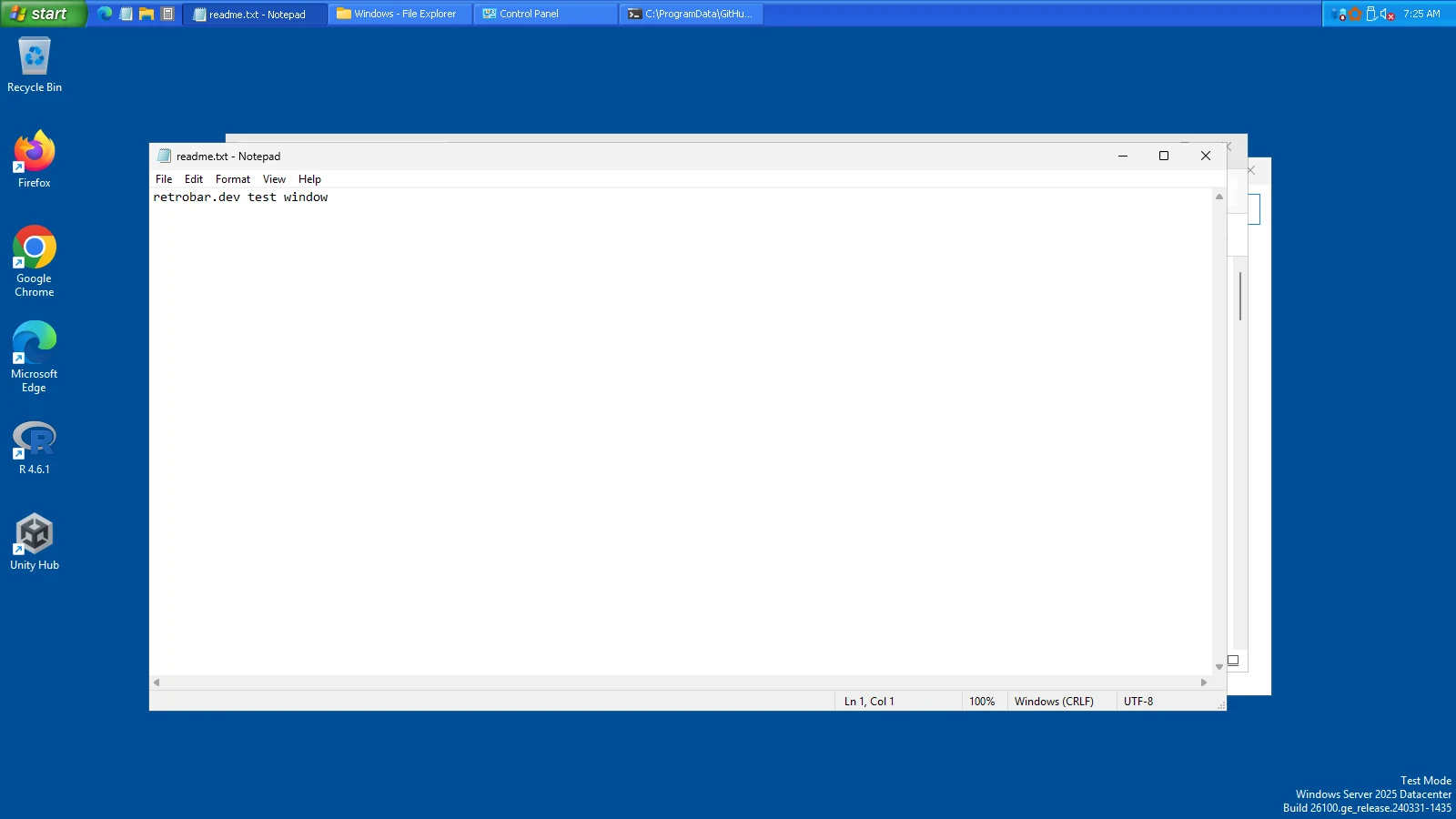
RetroBar replaces the taskbar with the Windows 95 to Vista one, and that one has always worked on every edge. Use it if Windows' option has not reached you, or if you want what Windows' side taskbar does not offer: text buttons with window titles, several rows or a wider bar, Quick Launch, and auto-hide on the side.
Install RetroBar
See how to install RetroBar. It replaces the Windows taskbar while it runs.
Choose the edge
Right-click RetroBar's taskbar › Properties › Taskbar › Location: Bottom, Top, Left or Right.
Or drag it
Right-click › untick Lock the Taskbar, then drag an empty part of the taskbar to another edge, as in Windows 95 to XP. Lock it again afterwards.
Make a side taskbar wider (optional)
Drag its inner edge, or set Taskbar width in Properties. On the left or right, the clock also shows the day and date.


Windows' setting or RetroBar?
| Windows 11 Taskbar position | RetroBar | |
|---|---|---|
| Top, left, right | Yes (rolling out since August 2026) | Yes |
| Look | Windows 11 | Windows 95, 98, 2000, XP or Vista |
| Task buttons on the side | Icons | Buttons with window titles |
| Auto-hide at the side | Not yet, per Microsoft's Insider notes | Yes |
| Search box at the side | No (top and bottom only) | Not part of RetroBar (use Win+S) |
| Several rows / wider bar | No | Yes |
| Install anything | No | Yes, free |
On Windows 10
Windows 10 has always allowed it: right-click the taskbar, untick “Lock the taskbar” and drag it, or choose Taskbar location on screen in its taskbar settings.
Questions
Why could Windows 11 not move the taskbar before?
Windows 11's redesigned taskbar shipped bottom-only in 2021. Microsoft's own specifications said “Alignment to the bottom of the screen is the only location allowed,” until the 2026 change.
Can I put the taskbar on the left without installing anything?
Yes, once the Taskbar position setting has reached your PC. Until then, RetroBar is the simplest free way.
Does RetroBar work with Windows' own Taskbar position setting?
RetroBar hides the Windows taskbar wherever it is and uses its own Location setting, so you only need one of them.
Keep going
Found something out of date or wrong? Tell us at hello@retrobar.dev and we will fix it.