Start here
How to use RetroBar
RetroBar works much like the taskbar of Windows 95 to XP: click a button to switch windows, right-click for menus, drag things where you want them. This guide goes through every part, with the menus as they really appear in RetroBar 1.22.122.
On this page 9 sections
Short answer
How do I open RetroBar's settings?
Right-click an empty part of the taskbar, or the clock, and choose Properties. The window has three tabs: Taskbar, Notification area and Advanced. Changes apply as soon as you make them.
The right-click menus
Where you right-click decides which menu you get.
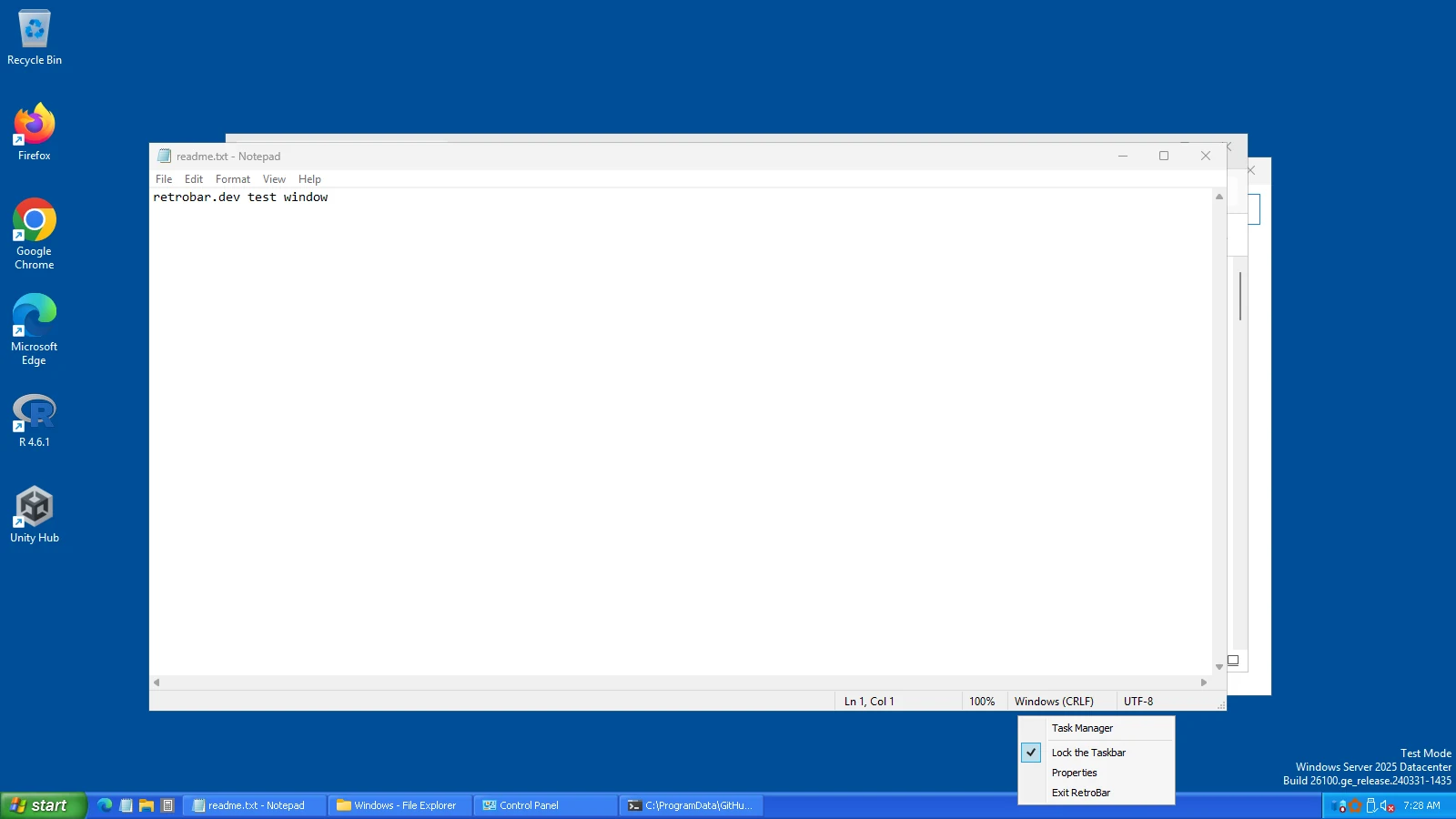
An empty part of the taskbar
Task Manager, Lock the Taskbar, Properties and Exit RetroBar. When RetroBar has found a newer version, an “Update available…” item appears here too; it opens the download page.
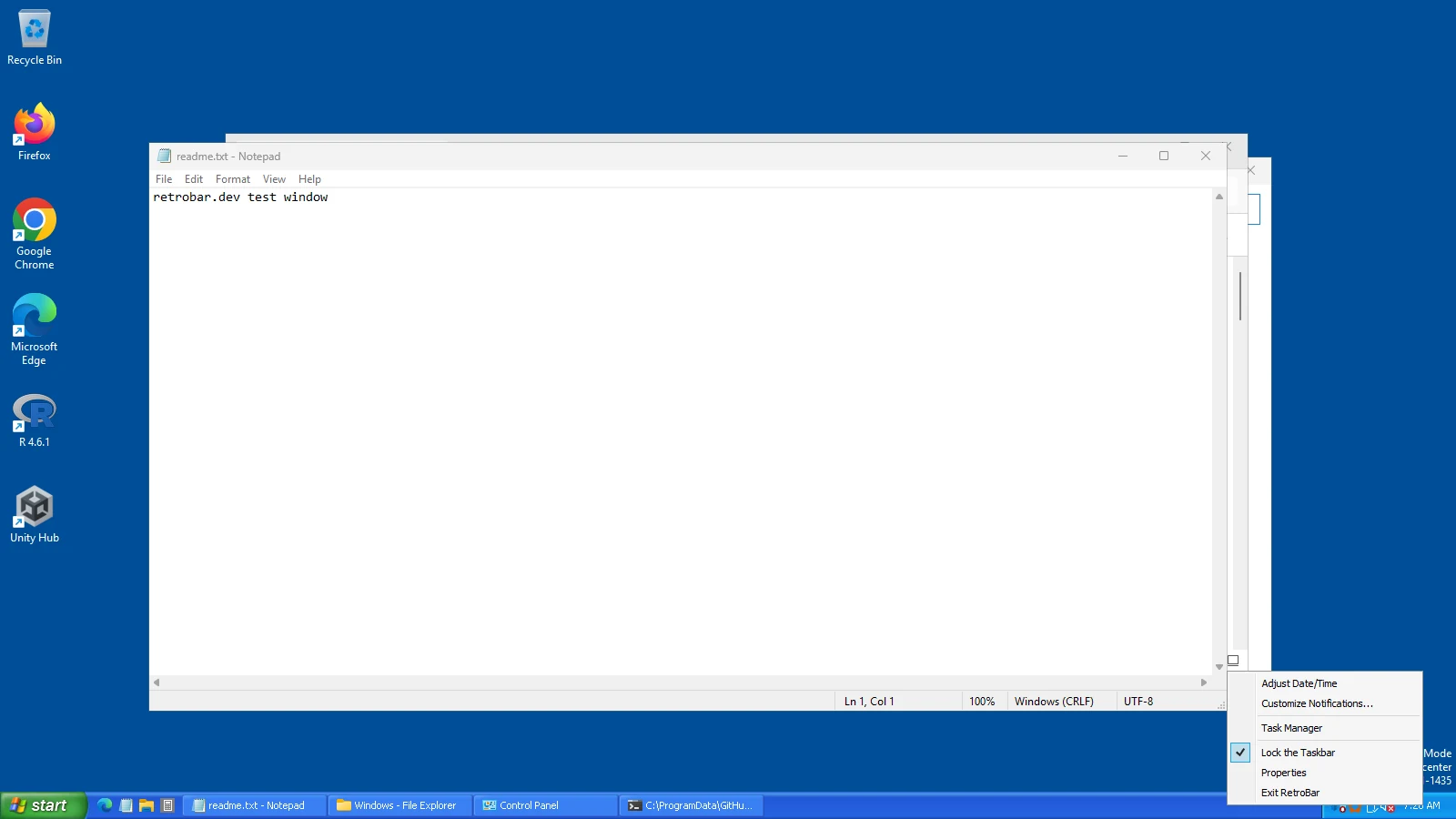
The clock or notification area
Adjust Date/Time, Customize Notifications…, Task Manager, Lock the Taskbar, Properties and Exit RetroBar. In the classic themes “Adjust Date/Time” is in bold, as in Windows 95 to 2000.
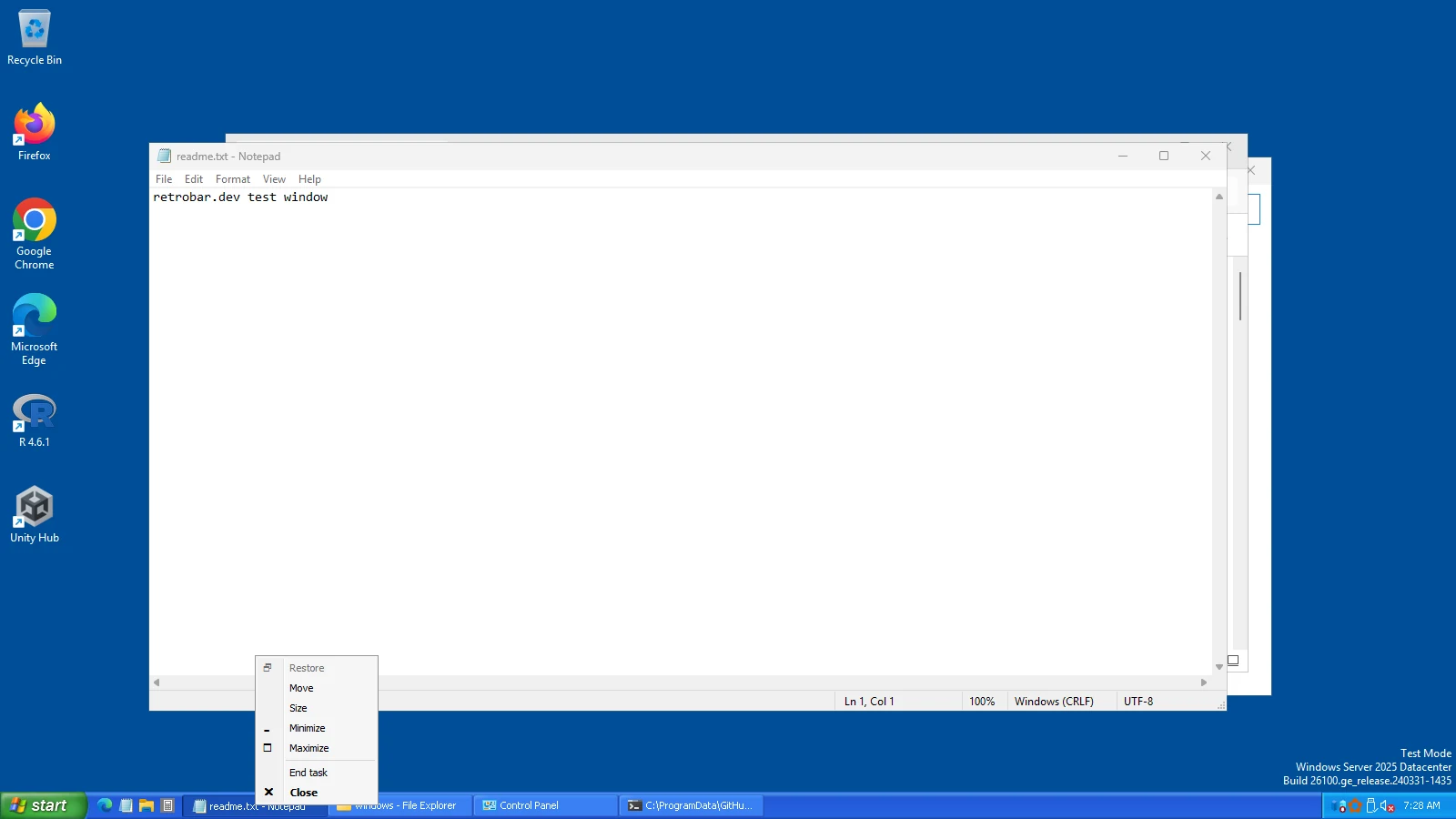
A task button
The classic window menu: Restore, Move, Size, Minimize, Maximize and Close. Turn on “Show End task option in right-click menu” (Properties › Advanced) to add End task, which closes a program that has stopped responding.
A detail from the theme files: the Task Manager item reads “Task Manager…” in the 95/98/Me/2000 themes and “Task Manager” in the XP and Vista themes, as it did in those versions of Windows.
Task buttons
- Click a button to bring its window to the front; click the active window's button to minimize it.
- Middle-click opens another copy of the program by default. Change it in Properties › Advanced › “Middle-click action”: Open a new instance, Close the task, or Do nothing. Holding Shift swaps “open” and “close”.
- Drag buttons to put them in the order you like.
- Hover to see the full window title. With “Show window previews (thumbnails)” on, you get a small live preview instead.
- RetroBar shows one button per window and does not combine windows of the same program.
Quick Launch
The small icons next to the Start button. By default they are the programs pinned to the Windows taskbar, because Quick Launch reads the same folder (%APPDATA%\Microsoft\Internet Explorer\Quick Launch\User Pinned\TaskBar).
- Add a program by dragging it, or its shortcut, onto Quick Launch.
- Reorder icons by dragging them; RetroBar remembers the order.
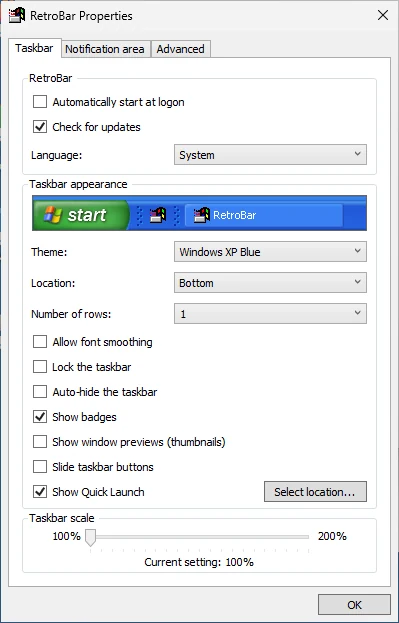
- Use another folder: Properties › Taskbar › “Select location…”, next to “Show Quick Launch”.
- Turn it off: untick “Show Quick Launch” in Properties › Taskbar.
Notification area and clock
- Hover over the clock for the full date.
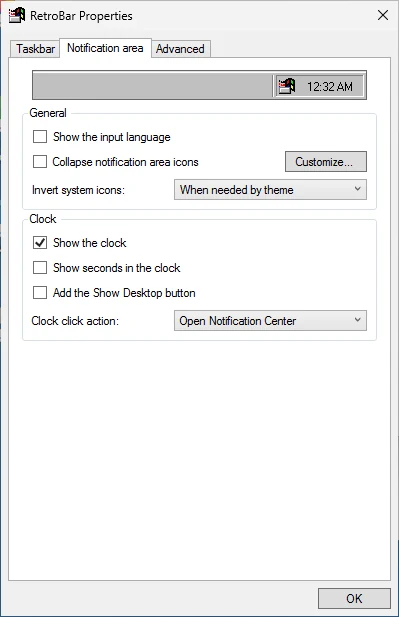
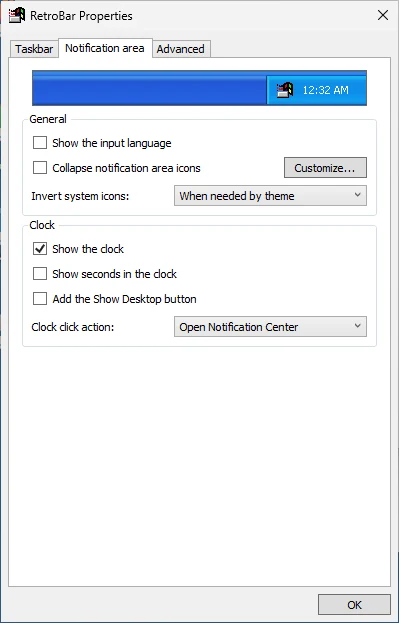
- Click the clock to open the Windows notification centre (the default on Windows 10 and 11), or choose a calendar in Properties › Notification area › “Clock click action”.
- Choose which icons show: right-click the clock › Customize Notifications…, select an icon and choose Always show, Hide when inactive or Always hide.
- Collapse the inactive ones behind an arrow, as in Windows XP: “Collapse notification area icons”.
- Drag notification icons to reorder them. In 1.22.122 that order can be lost after a restart; it is fixed for the next release (details).
Move and resize the taskbar
Unlock it
Right-click an empty part of the taskbar and untick Lock the Taskbar. Grips appear around Quick Launch.
Drag it to another edge
Drag an empty part of the taskbar to the top, left or right of the screen. Or choose the edge in Properties › Taskbar › Location.
Make it bigger
Drag its inner edge to add rows (at the top or bottom) or to make it wider (at the sides). You can also set “Number of rows” and “Taskbar width” directly in Properties › Taskbar.
Lock it again
Tick Lock the Taskbar so you do not move it by accident.
Start with Windows, exit and come back
- Start at sign-in: Properties › Taskbar › “Automatically start at logon”.
- Exit: right-click › Exit RetroBar. The Windows taskbar returns.
- Start again: from the Start menu (type RetroBar).
Keyboard
- Win opens the Start menu, as RetroBar's Start button does.
- Win+1 to Win+9: by default Windows keeps these. In Properties › Advanced you can make them switch to RetroBar's task buttons or open Quick Launch items instead; RetroBar warns that Windows only gets them back after you sign out and in again.
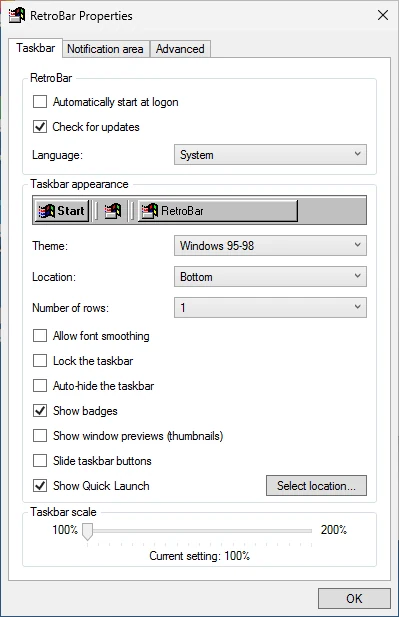
The Properties window
Every option in it is explained, with its default and its settings.json name, on the settings page. It follows your theme:



Next
Keep going
Found something out of date or wrong? Tell us at hello@retrobar.dev and we will fix it.