Themes
The Windows XP themes in RetroBar
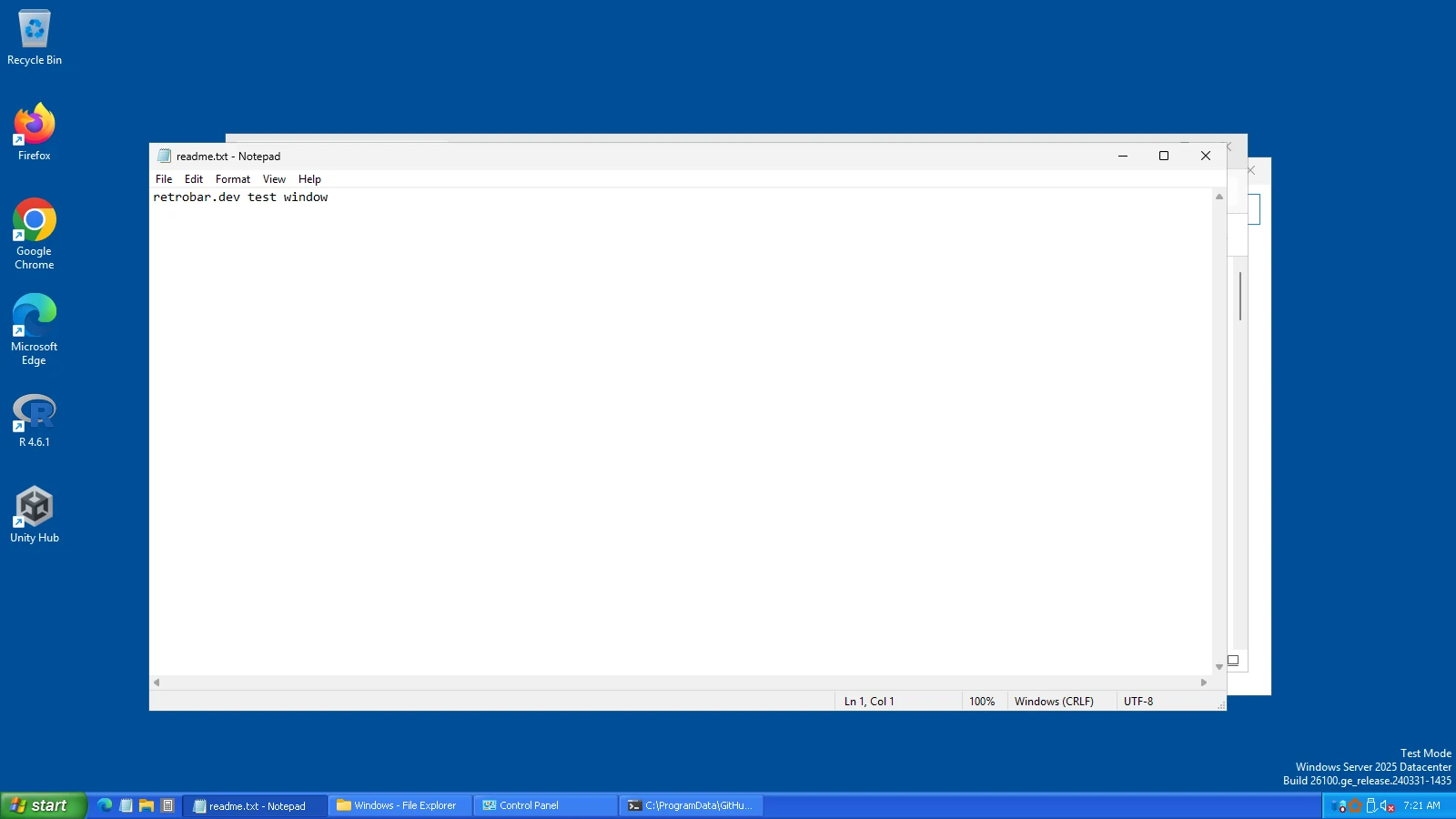
RetroBar 1.22.122 has eight Windows XP themes: the famous Luna Blue, Olive Green and Silver, the Media Center “Royale” family, and XP with the classic style. This page shows each one on real Windows, and the settings and Start menu that complete the look.
On this page 6 sections
Short answer
How do I get the Windows XP taskbar with RetroBar?
Right-click the RetroBar taskbar › Properties › Taskbar tab › Theme: Windows XP Blue. For the full XP look, also tick Collapse notification area icons on the Notification area tab, and add Open-Shell with our XP Start menu preset.
All eight XP themes
Real screenshots · RetroBar 1.22.122 · Windows Server 2025 build 26100.33650 · shown at 2×
Windows XP
















What makes it look like XP
- The Start button is an image from RetroBar's own resources, a separate one for Blue, Olive Green, Silver, Royale, Royale Noir, Zune and Embedded. Its “start” text is drawn in Franklin Gothic, set in RetroBar's language file.
- The bar is 30 pixels high, two more than the classic themes, with Tahoma text, as in Windows XP.
- Olive Green, Silver and Royale are built on top of XP Blue and change its colours and images; Royale Noir, Zune and Embedded are built on Royale. XP Classic has no keys of its own: it combines the Windows 2000 colours with XP's Start text and icon, like Windows XP with the classic style turned on.

Settings for the full XP look
Windows XP hid inactive notification icons behind an arrow and had no seconds or window previews. These are the RetroBar settings that match it, each shown on the XP Blue theme:




| Setting | For XP | Where |
|---|---|---|
| Theme | Windows XP Blue (or another XP theme) | Properties › Taskbar |
| Show Quick Launch | On | Properties › Taskbar |
| Lock the taskbar | On | Properties › Taskbar, or right-click the taskbar |
| Collapse notification area icons | On | Properties › Notification area |
| Show seconds in the clock | Off | Properties › Notification area |
| Show window previews (thumbnails) | Off | Properties › Taskbar |
The Settings Builder can write all of these into a script that applies them in one go.
The XP Start menu
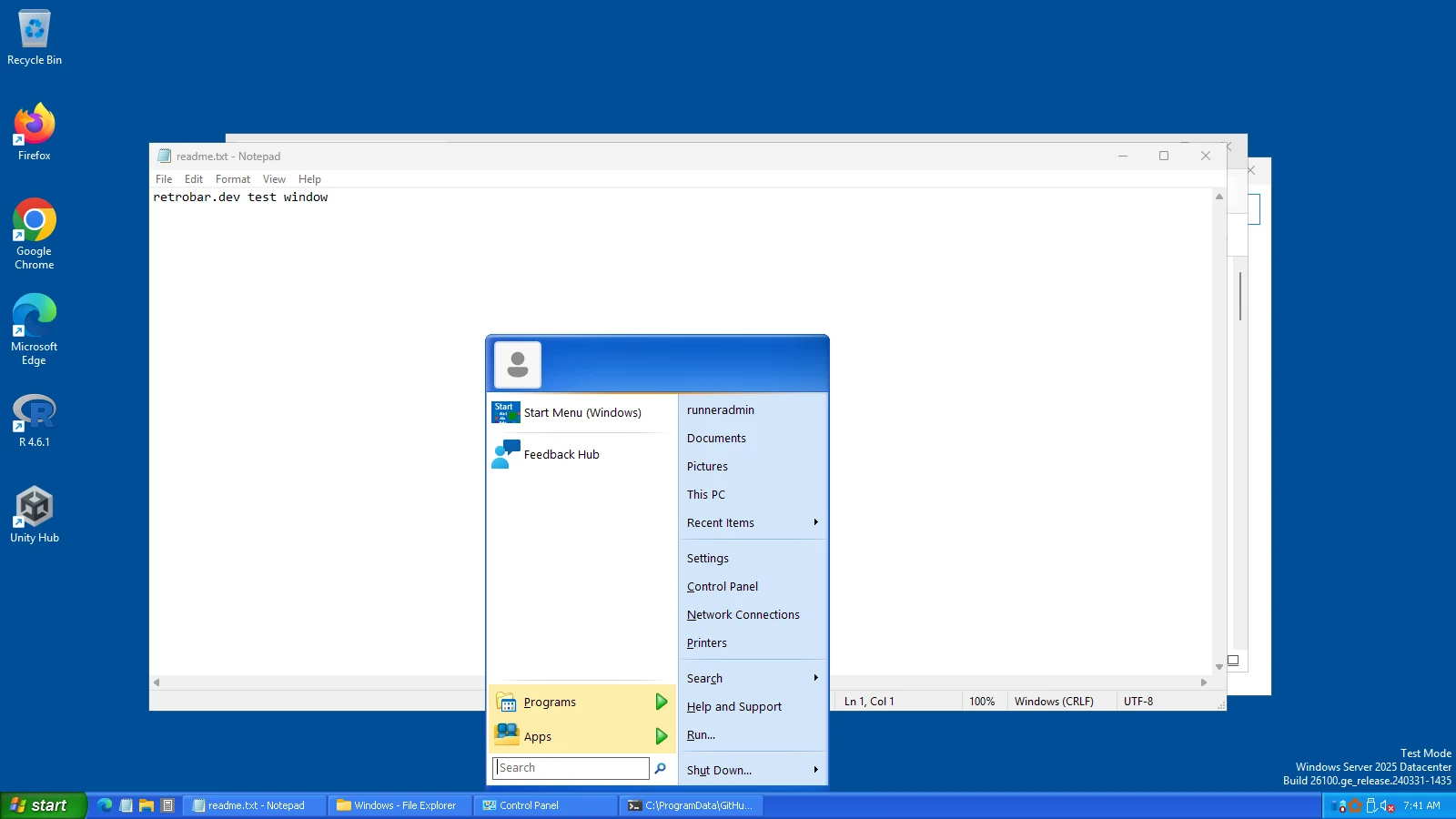
RetroBar's Start button opens whatever the Windows key opens. With Open-Shell and our XP preset, that is a two-column XP-style menu with the Luna skin. Choose its Olive Green or Silver variation in Open-Shell's Skin tab to match those themes.
What RetroBar cannot make look like XP
RetroBar changes the taskbar only. Window title bars, File Explorer and dialogs keep the Windows 11 look, and app icons on the taskbar are today's icons. Other tools restyle those parts; see what to combine RetroBar with.
Questions
Which RetroBar theme looks most like Windows XP?
Windows XP Blue: the Luna Blue taskbar with the green Start button that Windows XP used by default.
Is there a Windows XP Media Center theme?
Yes: Windows XP Royale, the look of Media Center and Tablet PC editions. Royale Noir is its dark version.
Can I change the green Start button?
Only with a custom theme: the button is an image set in the theme file. See custom themes and the StartButton keys in the key reference.
Keep going
Found something out of date or wrong? Tell us at hello@retrobar.dev and we will fix it.