Themes
All 19 RetroBar themes
RetroBar 1.22.122 comes with 19 themes: Windows 95/98, Me and 2000, eight Windows XP styles, two beta looks, three Vista styles, and three that use your own Windows colours. Every picture on this page is a screenshot of RetroBar running on Windows, not a mock-up.
On this page 6 sections
Short answer
How do I change the RetroBar theme?
Right-click an empty part of the taskbar, choose Properties, and pick a theme from the Theme list on the Taskbar tab. The taskbar changes as soon as you select it.
To switch themes from a shortcut or a script instead (RetroBar has no command-line options), use our Settings Builder.
Every theme
Each theme is shown twice, at double size: the left end of the taskbar (Start button, Quick Launch and the first task buttons) and the right end (notification area and clock). The windows on the taskbar are the same in every picture, so you can compare them directly.
Real screenshots · RetroBar 1.22.122 · Windows Server 2025 build 26100.33650 · shown at 2×
Windows 95, 98, Me and 2000






Windows XP
















Betas: Whistler and Longhorn




Windows Vista






Your Windows colours






Which theme should I use?
| You want | Use | Why |
|---|---|---|
| Windows XP as most people remember it | Windows XP Blue | Luna Blue with the green Start button, the default XP look. |
| Windows 95 or 98 | Windows 95-98 | RetroBar's default: grey bevels and the Microsoft Sans Serif font. |
| Windows 2000 or Me | Windows 2000 or Windows Me | The warmer grey of 2000; Me uses the same colours with its own font. |
| Windows Vista | Windows Vista Aero | Black glass and the round Start orb. |
| Windows 7 | Not built in | Vista Aero is the closest. See custom themes for community Windows 7 themes and how to install them safely. |
| A dark taskbar | Royale Noir, Zune Style or Vista Basic | The three darkest built-in looks. |
| Something that blends with Windows 11 | System | Uses the colours and title-bar font Windows reports. |
On every edge of the screen
Every theme works at the bottom, top, left or right of the screen (Properties › Taskbar › Location). On the left and right, RetroBar stacks the task buttons and shows the day and date under the clock.

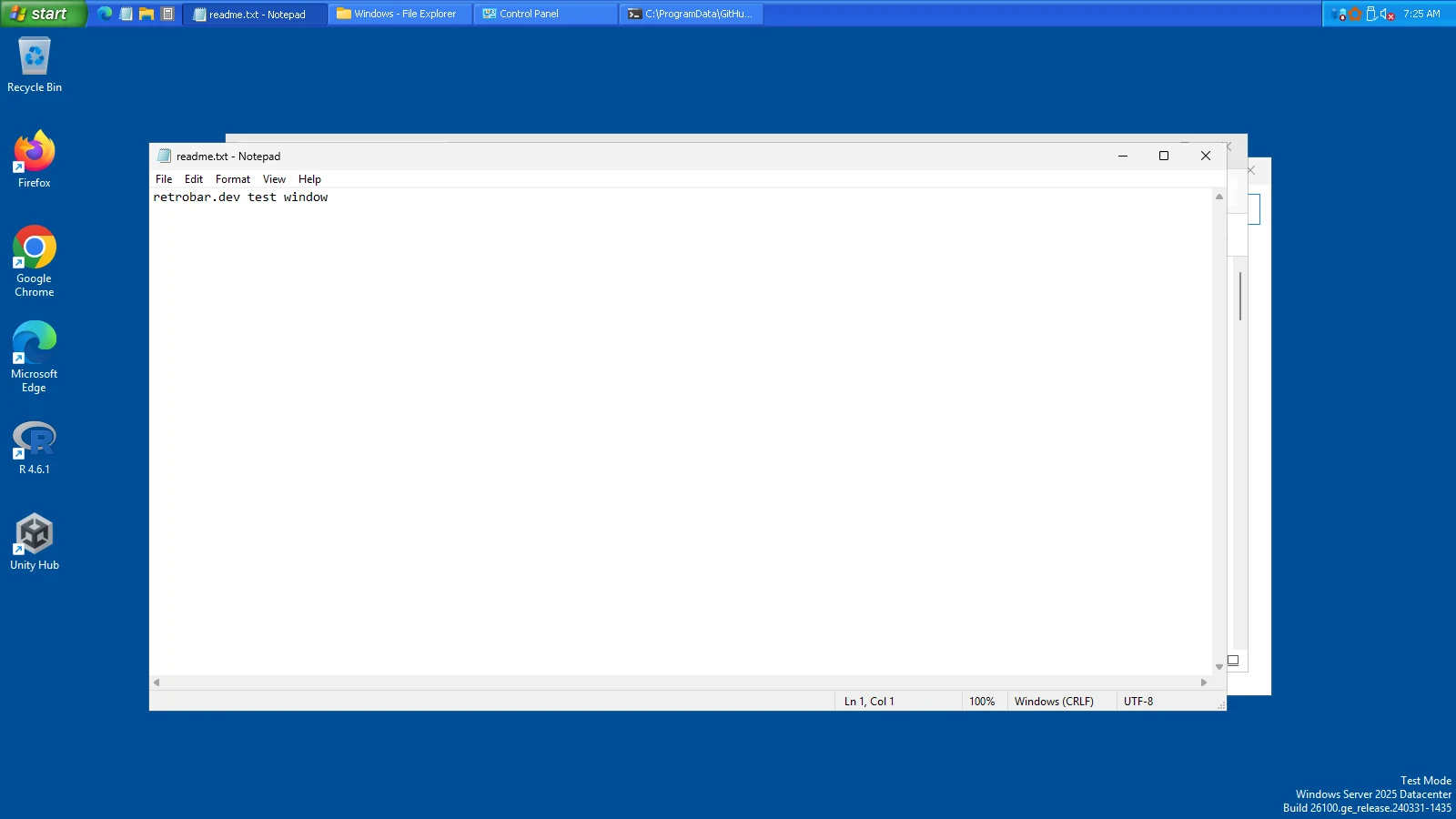
You can also give the taskbar several rows (Number of rows), make a vertical taskbar wider, or scale everything up for high-resolution screens (Taskbar scale). All of these are explained in the settings reference.
Locked, unlocked and pressed
When you unlock the taskbar (right-click › Lock the Taskbar), RetroBar draws the grips of the theme's Windows version on both sides of Quick Launch and makes the taskbar a few pixels taller, as Windows did. Unlocked, you can drag the taskbar's edge to resize it, or drag the whole taskbar to another edge.


How the themes are made
Each theme is a XAML file in RetroBar's program folder (%LOCALAPPDATA%\Programs\RetroBar\Themes when installed). RetroBar always loads its base theme, System.xaml, first and puts the chosen theme on top, and most themes build on another one: all the XP colour schemes start from XP Blue, for example. You can make your own the same way; custom themes explains how, with the full list of 307 theme keys and a checker for theme files.
Questions
What is the default RetroBar theme?
Windows 95-98. A new install starts with it until you choose another one in Properties.
Does RetroBar have a Windows 7 theme?
No. The built-in themes stop at Vista. Windows Vista Aero is the closest built-in look, and people share Windows 7 themes made for RetroBar; check them with our Theme Checker before installing.
Why does my XP theme look slightly different from real Windows XP?
RetroBar draws the taskbar with WPF on Windows 10 or 11, using the theme's colours, sizes and images. The Start button and bar artwork are close copies, but text is drawn with Windows 11's font rendering, and the icons are your current app icons, not the ones Windows XP had.
Do the themes change windows and the Start menu too?
No. A RetroBar theme changes the taskbar, its menus and the Properties window. Windows, title bars and the Start menu keep the Windows 11 look; for a classic Start menu see Open-Shell with RetroBar.
Keep going
Found something out of date or wrong? Tell us at hello@retrobar.dev and we will fix it.