Tools
Retro Makeover
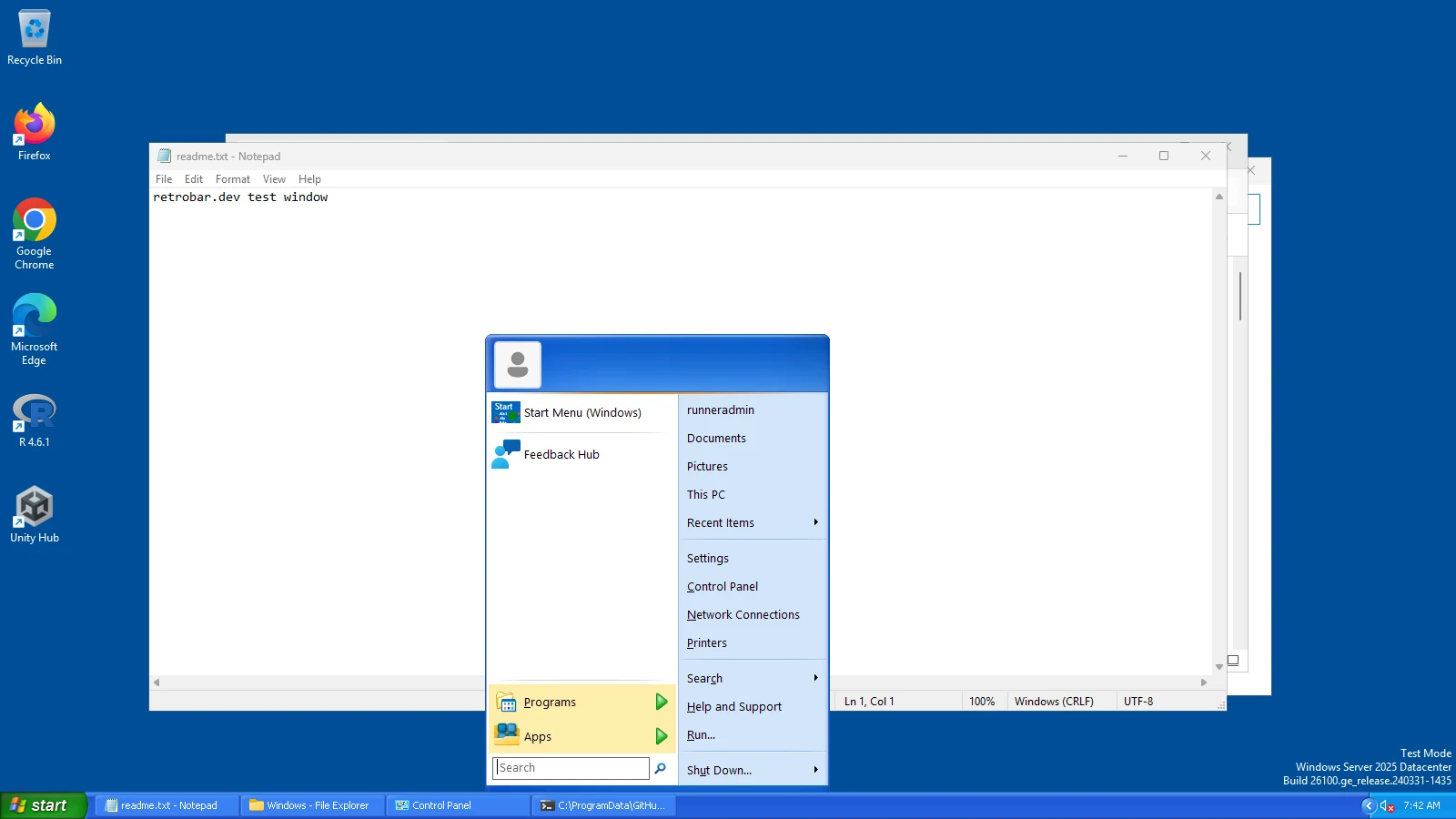
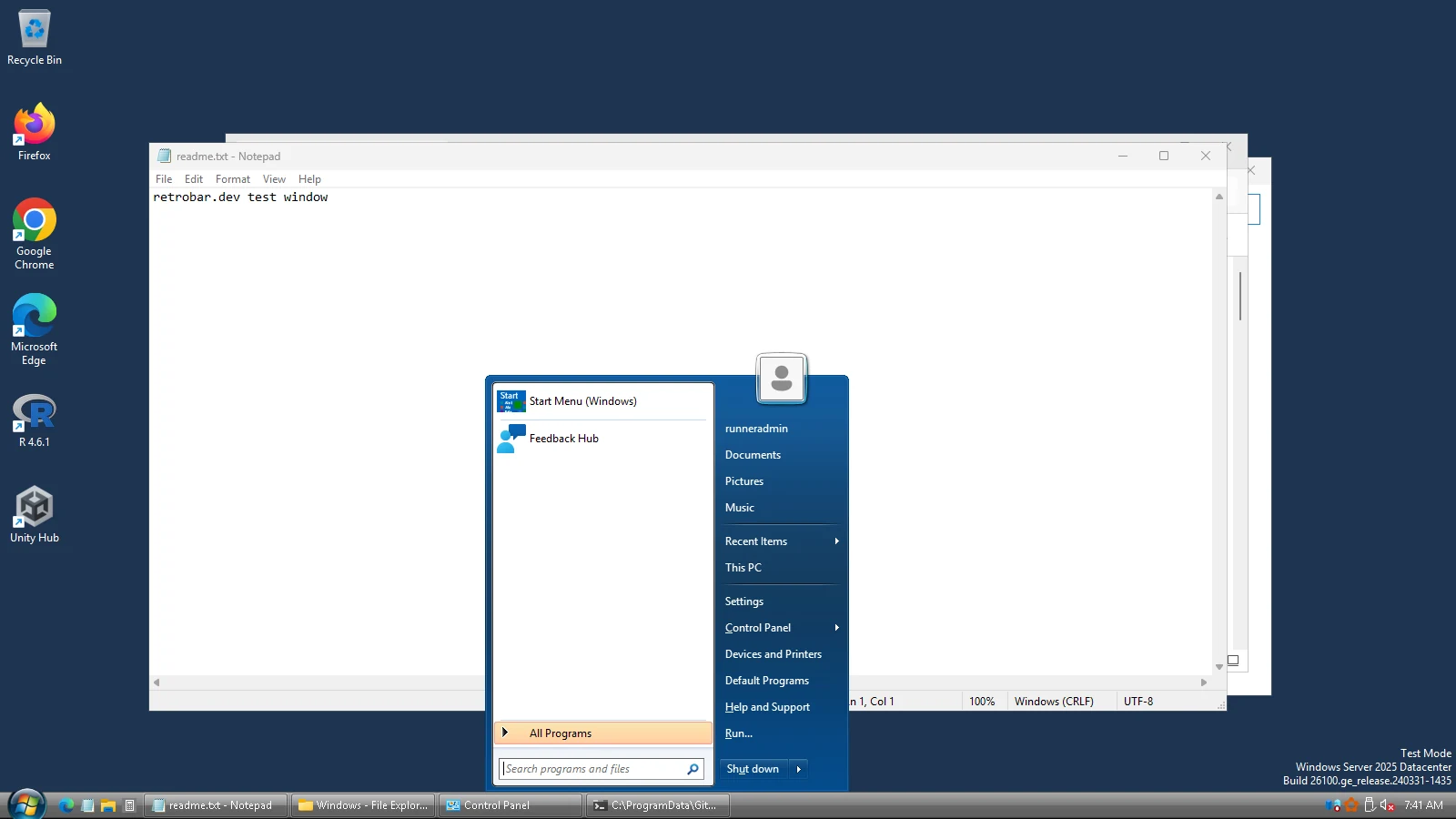
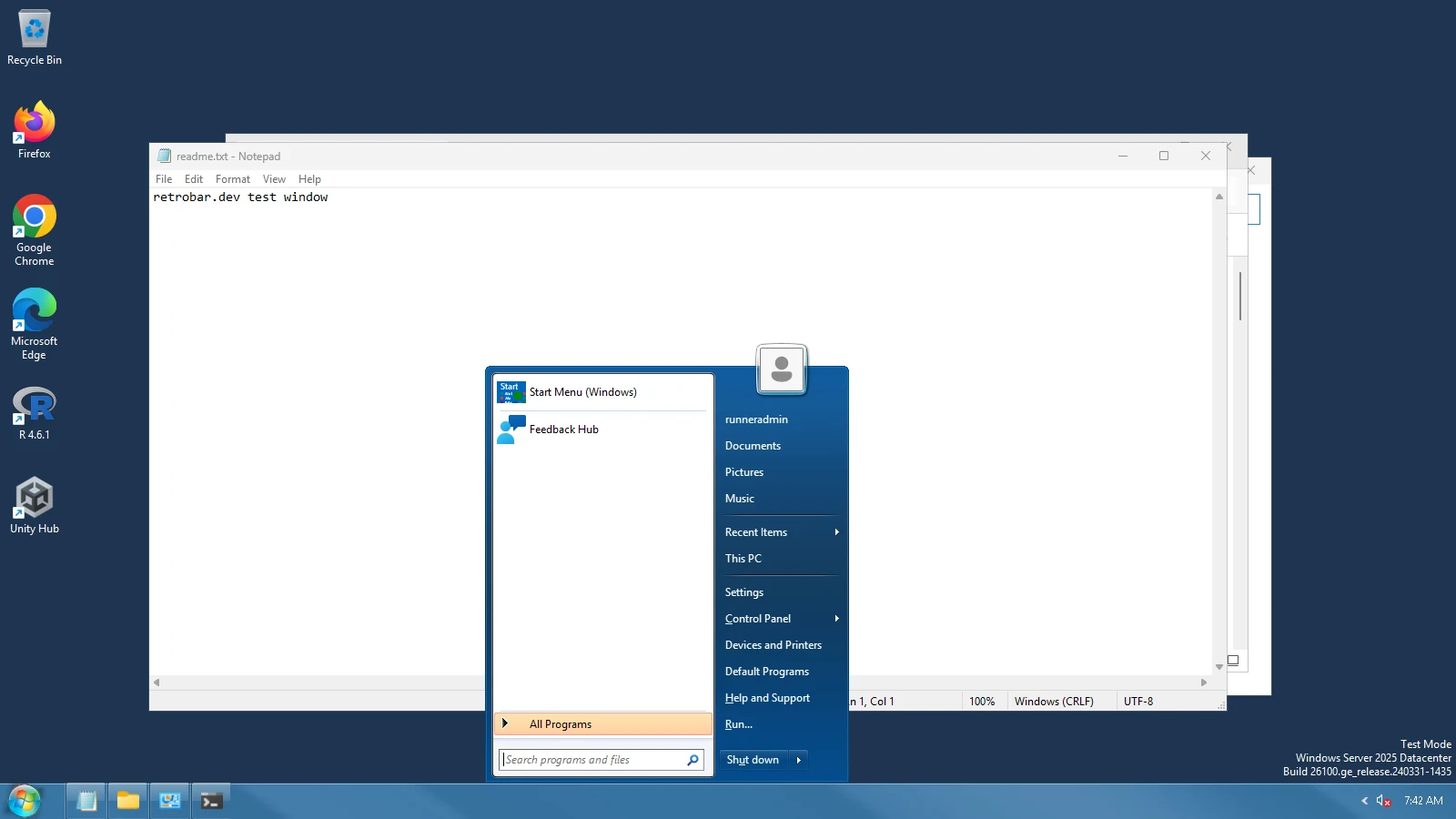
Pick an old Windows and download one PowerShell script that applies the parts of the look we could test: RetroBar's theme and that version's taskbar habits, an Open-Shell Start menu with our preset, and a plain desktop colour. It saves what it changes and writes an undo script. Everything is made in your browser.
On this page 5 sections
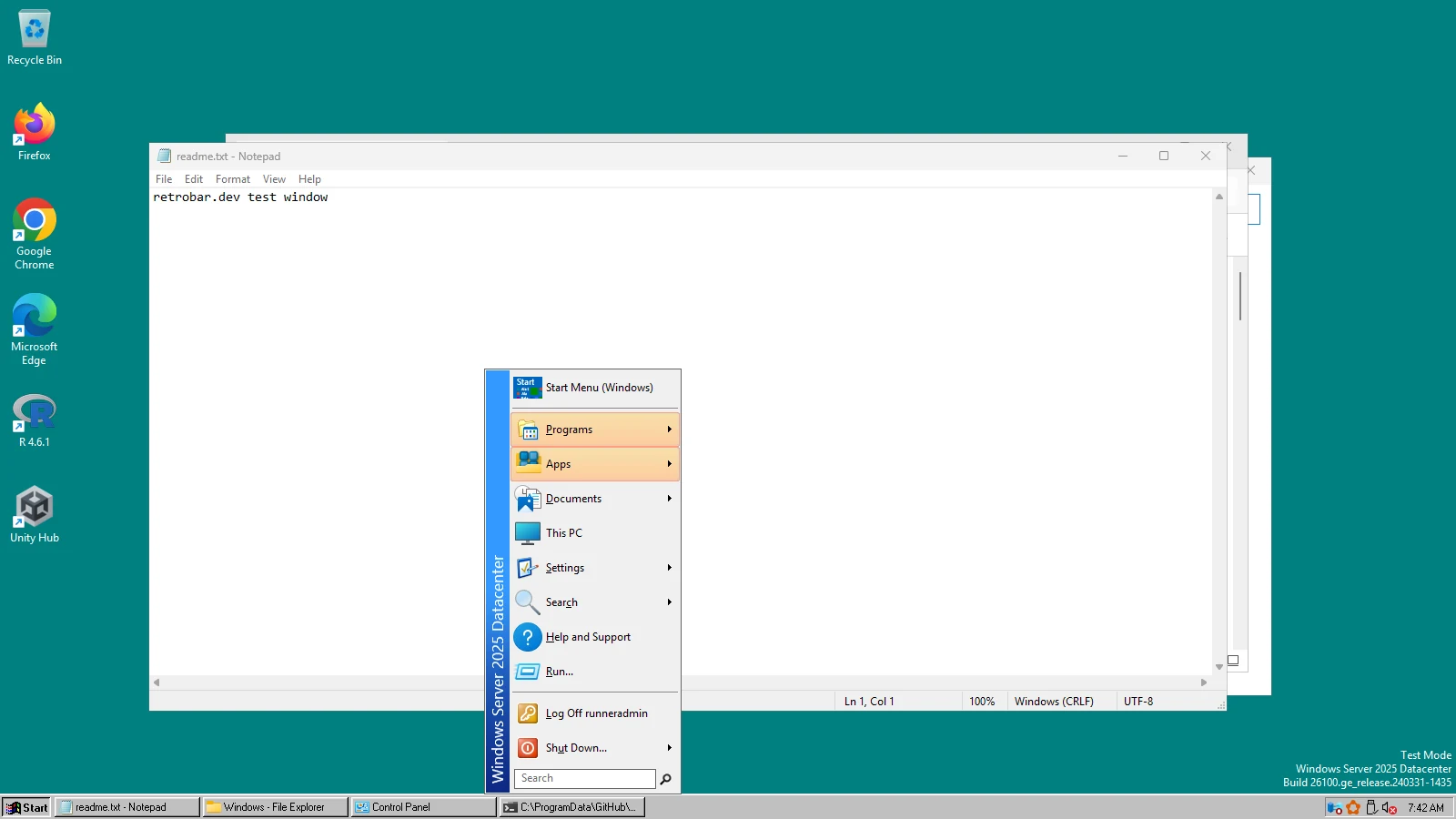
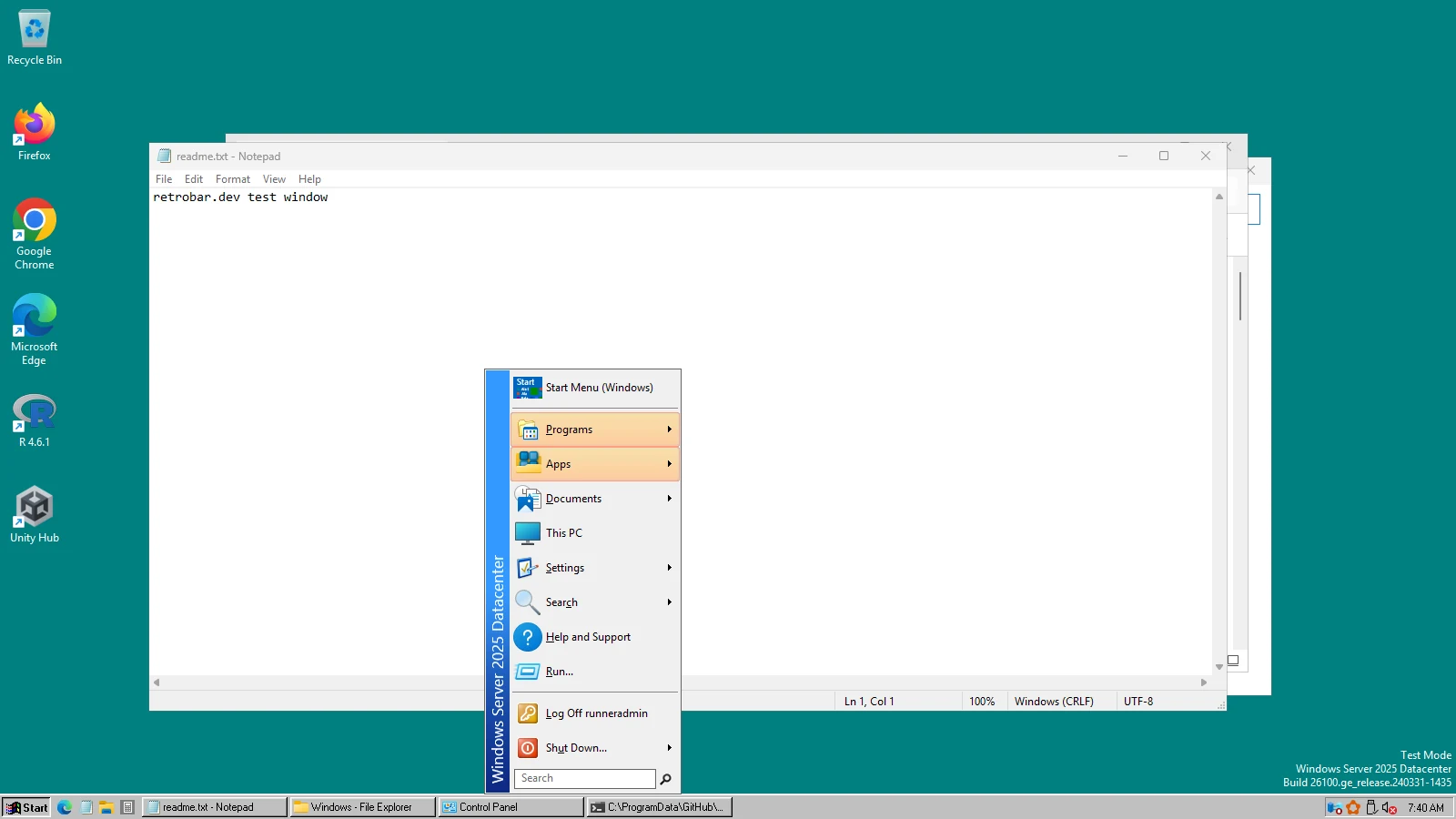
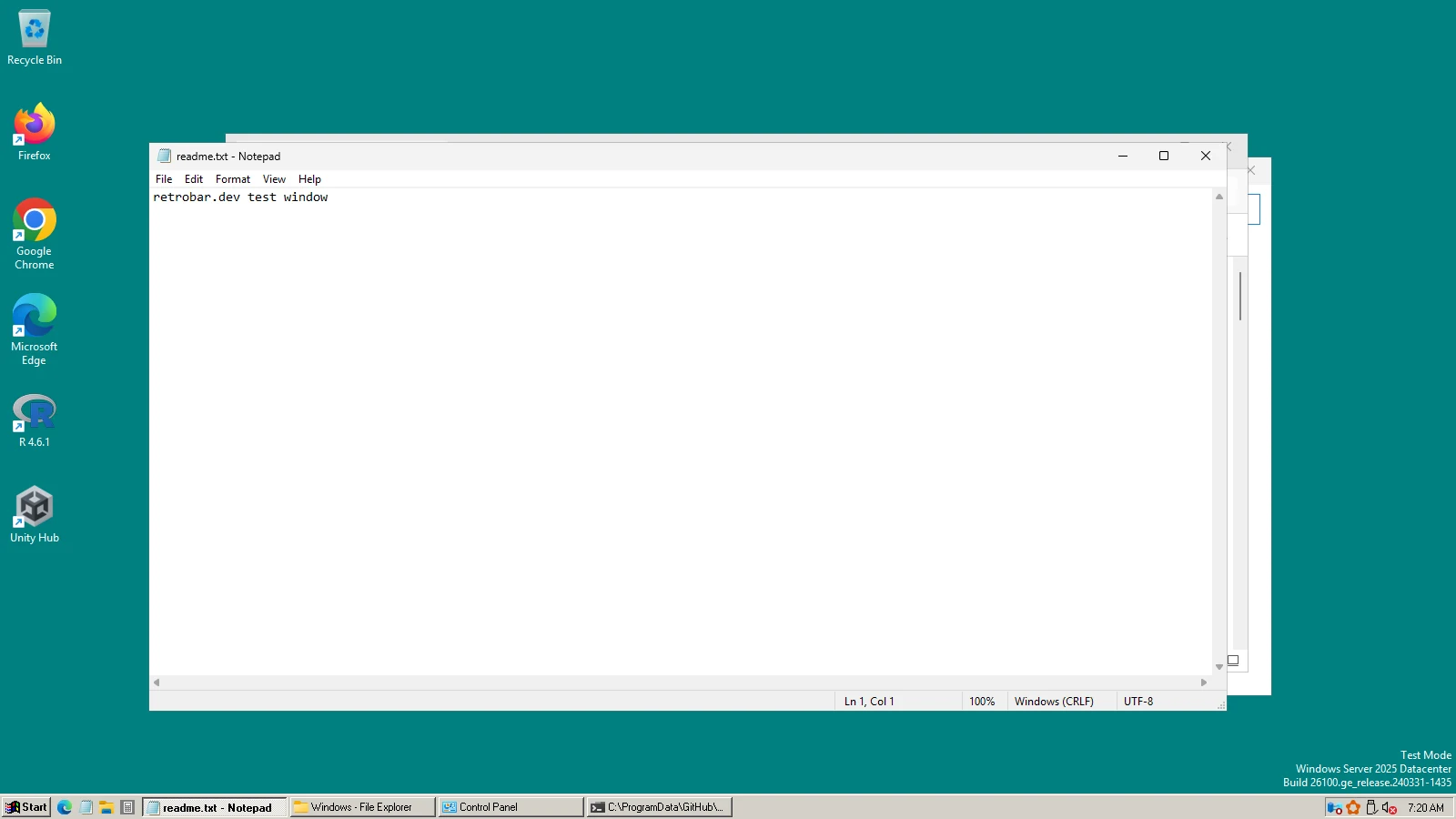
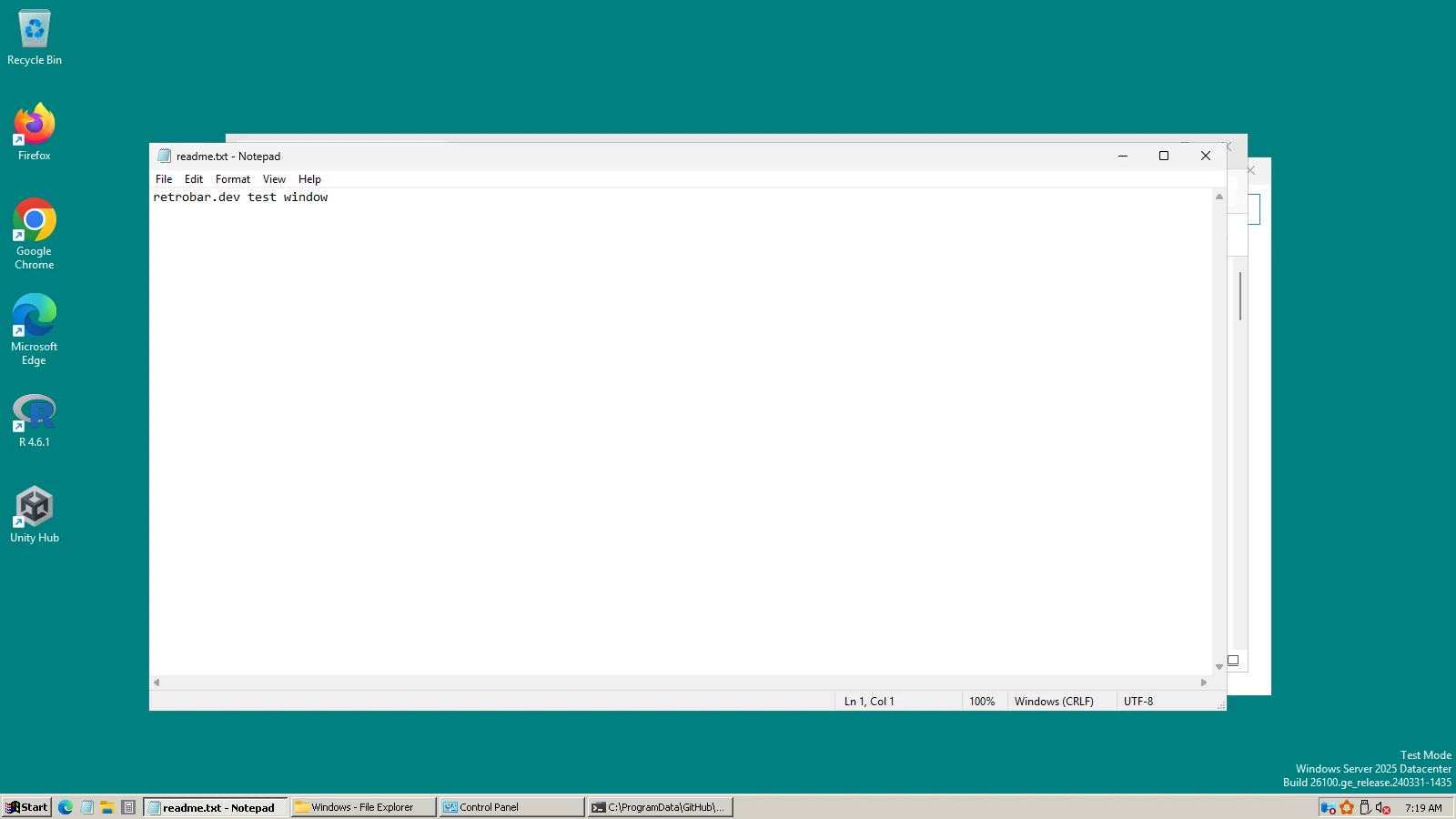
The script will
Run it
Run the script as yourself
Right-click the downloaded file › Run with PowerShell. Do not run it “as administrator”: RetroBar should run as you, and the script asks Windows for permission only for the Open-Shell installer. If Windows says running scripts is disabled, open PowerShell in your Downloads folder and run:
PowerShellpowershell -NoProfile -ExecutionPolicy Bypass -File .\Retro-Makeover-Windows-XP.ps1Undo, any time
The script writes
%LOCALAPPDATA%\RetroBar\Undo-RetroMakeover.ps1. Run it the same way to put back your previous RetroBar settings, Open-Shell settings and desktop. Open-Shell itself stays installed if the makeover installed it; remove it in Settings › Apps.
Tested on Windows
We downloaded three scripts from this page and ran them, in this order, on each test machine, then ran the undo script (2026-10-31). Open-Shell was not installed before the first script, so it tested the download, the hash check and the install.
| Windows 11 (Arm64) | Windows Server 2025 | Windows Server 2022 | |
|---|---|---|---|
| Windows 95 script | |||
| Ran to the end without errors | Yes | Yes | Yes |
| RetroBar theme is Windows 95-98 | Yes | Yes | Yes |
| Open-Shell running with our preset | Yes | Yes | Yes |
| Desktop colour | Yes | Yes | Yes |
| Windows XP script | |||
| Ran to the end without errors | Yes | Yes | Yes |
| RetroBar theme is Windows XP Blue | Yes | Yes | Yes |
| Open-Shell running with our preset | Yes | Yes | Yes |
| Desktop colour | Yes | Yes | Yes |
| Windows 7 script | |||
| Ran to the end without errors | Yes | Yes | Yes |
| RetroBar theme is Windows 7 Aero - Hidden Labels | Yes | Yes | Yes |
| Open-Shell running with our preset | Yes | Yes | Yes |
| Desktop colour | Yes | Yes | Yes |
| Undo script | |||
| Ran to the end | Yes | Yes | Yes |
| RetroBar settings back as before | Yes | Yes | Yes |
| Desktop colour back as before | Yes | Yes | Yes |

Why these choices
- Only what we tested. Each piece is something our test machines ran: the RetroBar themes, the Windows 7 community theme at the version we tested, Open-Shell 4.4.198 with our presets, and the settings, which are RetroBar's own settings.json keys.
- Few settings. Besides the theme, the script changes only what that Windows version is remembered for, such as Quick Launch (not in Windows 95) or the calendar that opens from Vista's clock. Everything else keeps your current value. For more, use the Settings Builder.
- The Open-Shell installer is checked. The script downloads Open-Shell's official 4.4.198 setup from its GitHub release and refuses to run it unless its SHA-256 matches the file we tested.
- No copyrighted files. Windows' wallpapers, sounds and logos belong to Microsoft, so the script uses a plain colour. See the makeover checklists for wallpaper and sounds.
What it does not change
Window title bars, File Explorer, Settings and Store apps keep Windows 11's look: no script can change those safely. The guides for XP, 7 and 95 list each part and what can and cannot be done about it.
Keep going
Found something out of date or wrong? Tell us at hello@retrobar.dev and we will fix it.