Fixes
RetroBar troubleshooting
The problems people report most in RetroBar's issue tracker, with the fix that applies to 1.22.122. Each fix says where it comes from: our own tests on Windows, RetroBar's source code, or a thread in the tracker where the maintainer or a user confirmed it.
On this page 13 sections
- Find your problem
- The Windows taskbar still shows
- RetroBar stays over full-screen videos and games
- The Start button does nothing, or opens the wrong menu
- Wi-Fi, volume or battery icon missing
- RetroBar will not start
- RetroBar does not start at startup
- RetroBar crashed after choosing a theme
- Nothing on my second monitor
- The clock freezes, or shows the wrong format
- Dragging a file onto a task button takes a long time
- Reset RetroBar, and report a bug
- Questions
Find your problem
- The Windows taskbar still showsTwo taskbars, or the Windows one keeps coming back.
- RetroBar stays over full-screen video or gamesOr a game drops out of full screen.
- The Start button does nothingOr opens the wrong menu.
- Wi-Fi, volume or battery icon missingOr icons change order after a restart.
- RetroBar will not start.NET errors, nothing happens, or it crashes at once.
- RetroBar does not start at startupIt has to be opened by hand after signing in.
- It crashed after I chose a theme“Would you like to restart RetroBar?”
- Nothing on my second monitorOr a flickering taskbar there.
- The clock freezes or shows the wrong formatDuring games, or missing seconds or date.
- Dragging onto a task button is slowAnd other small annoyances.
- Reset RetroBarBack to the defaults, and how to report a bug.
The Windows taskbar still shows
What should happen: when RetroBar starts, it hides the Windows taskbar, and when you exit RetroBar it puts it back. In our tests with 1.22.122 that worked on Windows 11 and on Windows Server 2025 and 2022: the Windows taskbar was hidden as soon as RetroBar appeared and visible again after Exit RetroBar.
If you still see it:
- Only on a second monitor, or a flickering bar there: in Windows, open Settings › Personalization › Taskbar › Taskbar behaviors and turn off Show my taskbar on all displays. Windows otherwise keeps re-showing its taskbar on the other screen while RetroBar keeps hiding it. This was the confirmed fix in #1423, suggested by RetroBar's maintainer; switching RetroBar's own multi-monitor option did not help there.
- With StartAllBack, ExplorerPatcher or another taskbar changer: turn off their taskbar changes while you use RetroBar. Two programs changing the same taskbar get in each other's way; RetroBar's maintainer gave this advice for StartAllBack and ExplorerPatcher in #737.
- On RetroBar 1.17 or older on Windows 11: update. Those versions asked Windows 11 users to turn on the Windows taskbar's “Automatically hide the taskbar” first; from 1.18 the release notes no longer ask for it.
The opposite problem, a Windows taskbar that keeps hiding after you stop using RetroBar, is on the uninstall page.
RetroBar stays over full-screen videos and games
This is the most reported kind of bug. RetroBar 1.19 fixed “many situations where RetroBar would cover full-screen apps”, but some remain in 1.22.122. Our test machines have no graphics card, so this section relies on the tracker.
- Video in a browser (Firefox, Brave, Chrome): still reported on recent versions (#1133, open). Switching away from the video window and back (Alt+Tab) usually hides the bar again.
- Firefox specifically: one user fixed it by opening
about:configand settingwidget.windows.fullscreen_marking_methodto2; another said it helped most of the time but not always (#976). - Older games that change the screen resolution can still show the bar (#976).
- A game drops from full screen to a window when RetroBar runs (#1497, October 2026, open): the maintainer asked the reporter to try turning off RetroBar's “Show on multiple displays”. No result yet.
Collecting a log helps the maintainer more than anything: see report a bug.
The Start button does nothing, or opens the wrong menu
What should happen: RetroBar has no Start menu of its own. Its Start button opens the Windows Start menu, which is what our test showed on Windows 11, and the Windows key works as before.
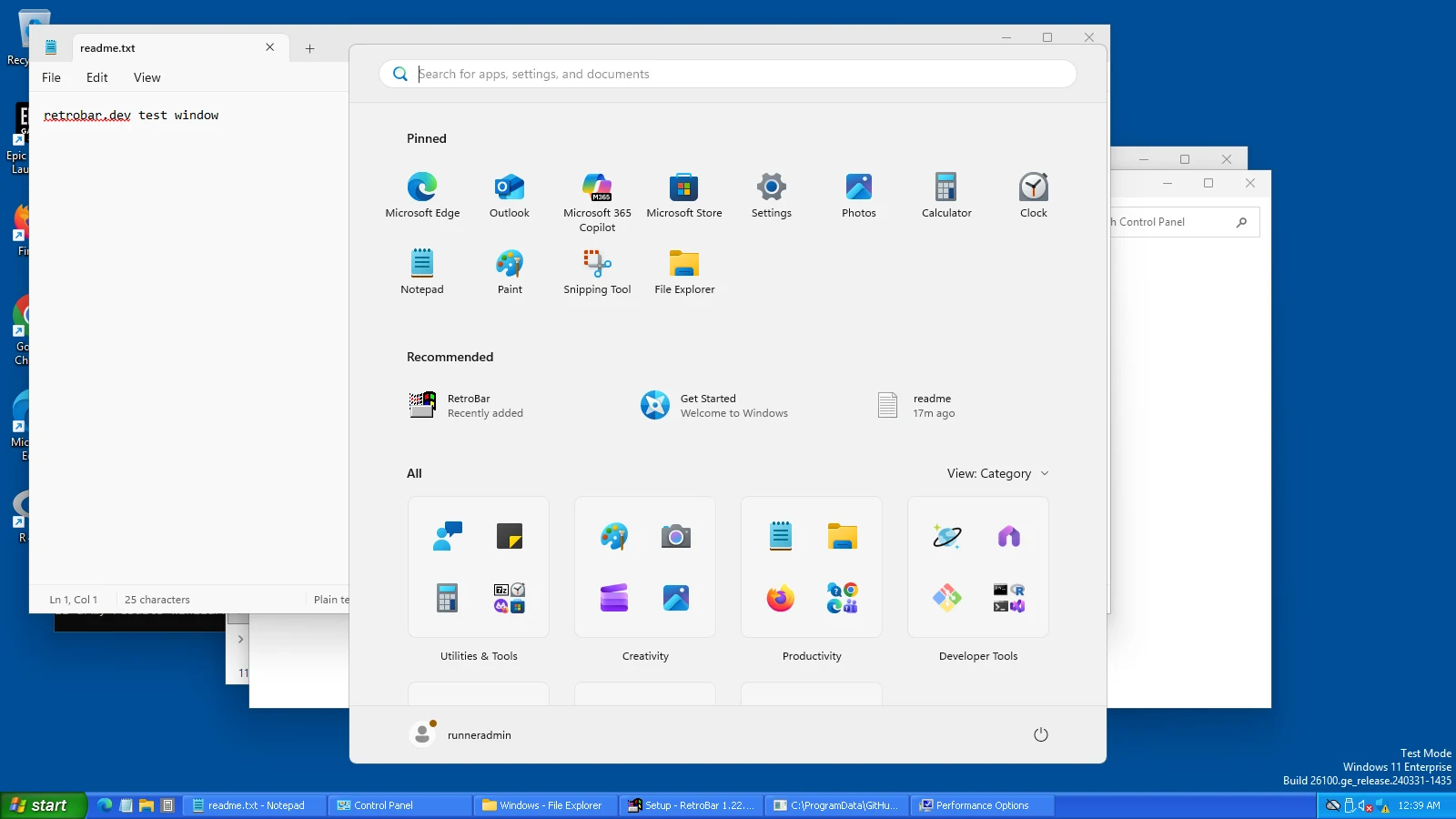
- With Open-Shell: RetroBar's README recommends two Open-Shell settings: Controls › Windows Key opens › Open-Shell Menu, and Menu Look › Align start menu to working area. RetroBar's Start button works by sending a press of the Windows key (we checked the source), so if the Windows key is set to open something else, the Start button does too (#112). Our Start menu guide has ready-made presets.
- Nothing at all happens: check that the Windows key itself works. Gaming keyboards often have a Windows-key lock; in #897 that was the cause. Key-remapping tools can do the same.
Wi-Fi, volume or battery icon missing
- Wi-Fi (network) icon on Windows 11 24H2 or later: RetroBar's maintainer explains that Windows 11 24H2 removed that icon, so RetroBar cannot show it (#902). The workaround confirmed there: click RetroBar's volume icon. It opens the Windows 11 quick settings panel, which has the Wi-Fi controls.
- An icon is hidden: right-click the clock › Customize Notifications… and set the icon to show always. If “Collapse notification area icons” is on, hidden icons are behind the arrow.
- Icons too dark or too light for the theme: Properties › Notification area › “Invert system icons”, or per icon in Customize Notifications.
- Icons you dragged into order are shuffled after a restart: a known bug in 1.22.122 (#1453). It is fixed for the next release. Until then, set the icons you care about to show always, which keeps them in a steadier place.
RetroBar will not start
- A message about .NET, or nothing happens: 1.22.122 needs the .NET 10 Desktop Runtime on Windows 10 and 11. The installer adds it, but its window can hide behind setup (see the install guide). Install it from dotnet.microsoft.com: choose “.NET Desktop Runtime” for your processor (x64, Arm64 or x86).
- A .NET internal error (0x80131506), seen on Windows 10 LTSC / IoT: the maintainer suggested the .NET 6 build, and it worked for the reporter (#1454). Download RetroBar.Portable.zip and run
RetroBar.exefrom itsWin7-8folder. - It starts and immediately shows “Would you like to restart RetroBar?”: usually a custom theme. See the next section.
- It worked before an update: run the latest installer again over it; your settings are kept.
RetroBar does not start at startup
RetroBar starts with Windows only if “Automatically start at logon” is ticked (Properties › Taskbar) or you chose the autostart option in the installer. Both store the path of RetroBar.exe as a RetroBar value under HKEY_CURRENT_USER\Software\Microsoft\Windows\CurrentVersion\Run, as RetroBar's source code shows.
- The box is ticked but it still does not start: open Settings › Apps › Startup and check that RetroBar is turned on there. Windows can switch a startup app off without removing it, and RetroBar's checkbox only checks that the value exists, so it still shows as ticked.
- You use the portable version and moved its folder: the value still points at the old place. Untick the box and tick it again to store the new path.
- It starts, but late: Windows starts startup apps after you sign in, together with everything else in that list. RetroBar itself showed its taskbar about a second after starting in our measurements.
RetroBar crashed after choosing a theme
In our tests, a theme copied from RetroBar's built-in XP Blue into the custom themes folder crashed RetroBar 1.22.122 the moment it was selected, because its images point to a folder that does not exist there. RetroBar then loads the same theme at every start. To get out of it:
Close the error
Answer No to “Would you like to restart RetroBar?”.
Remove the theme
Open
%LOCALAPPDATA%\RetroBar\Themesand move the theme file out of the folder.Start RetroBar
A theme that no longer exists is skipped, so RetroBar starts with its plain base look. Choose another theme in Properties.
How to fix the theme itself: custom themes › why downloaded themes crash.
Nothing on my second monitor
RetroBar shows a taskbar on your main screen only, unless you turn on Show on multiple displays in Properties › Advanced › Multiple displays. There you also choose which taskbar shows which windows, and whether every taskbar gets a Start button (Windows 10 and 11). For a flickering second taskbar, see the Windows taskbar still shows.
The clock freezes, or shows the wrong format
- The clock stops while a full-screen game runs (seen on laptops): turn on Use software rendering in Properties › Advanced. Two users confirmed that the clock then kept updating (#188).
- Seconds: Properties › Notification area › “Show seconds in the clock”.
- Date: hover over the clock to see the full date. On a taskbar at the left or right edge, RetroBar shows the day and date under the time.
- A custom clock format (for example 24-hour or your own text): RetroBar uses your Windows time format. A setting for your own format is in RetroBar's source for the next version, not in 1.22.122; see coming in the next release.
Dragging a file onto a task button takes a long time
When you drag a file over a task button, RetroBar waits before bringing that window forward, and it uses Windows' own mouse hover delay for that. The maintainer's advice in #1070: lower MouseHoverDelay under HKEY_CURRENT_USER\Control Panel\Mouse (he suggested about 400; the reporter used 200), then sign out and back in. This changes hover timing for all of Windows.
Reset RetroBar, and report a bug
Reset all settings: exit RetroBar, delete %LOCALAPPDATA%\RetroBar\settings.json, and start it again. RetroBar uses its defaults when the file is missing. Your custom themes in the same folder are not affected. RetroBar has no safe mode or command-line switches.
Get a log for a bug report:
Turn on debug logging
Properties › Advanced › Enable debug logging.
Make the problem happen
Then open
%LOCALAPPDATA%\RetroBar\Logs. Each start of RetroBar writes a new file named after the date and time.Copy the log straight away
RetroBar deletes log files older than 7 hours each time it starts (from its source code), so copy the file before you restart RetroBar or your PC.
Open an issue
On github.com/dremin/RetroBar/issues, search first, then describe what happens and attach the log. Include your RetroBar version: it is at the bottom of Properties › Advanced (for example “Version 1.22.122+cff7a787c3”), and your Windows version (Win+R,
winver).
Questions
Where are RetroBar's logs?
In %LOCALAPPDATA%\RetroBar\Logs, one file per start. Files older than 7 hours are deleted when RetroBar starts, and the uninstaller removes the folder.
Does RetroBar work with StartAllBack or ExplorerPatcher?
Not well at the same time: they change the same taskbar. Turn off their taskbar features while you use RetroBar; their other features, such as the Start menu or File Explorer changes, can stay.
Is RetroBar still maintained?
Yes. 1.22.122 came out on August 2, 2026, and RetroBar's master branch already has 53 more commits for the next version. See releases.
Keep going
Found something out of date or wrong? Tell us at hello@retrobar.dev and we will fix it.