Taskbar how-to
Never combine taskbar buttons in Windows 11
By default Windows 11 stacks all windows of a program into one icon without a title. If you want one button per window with its name on it, there are two ways: Windows' own setting, and RetroBar's classic taskbar.
On this page 4 sections
Short answer
How do I stop Windows 11 from combining taskbar buttons?
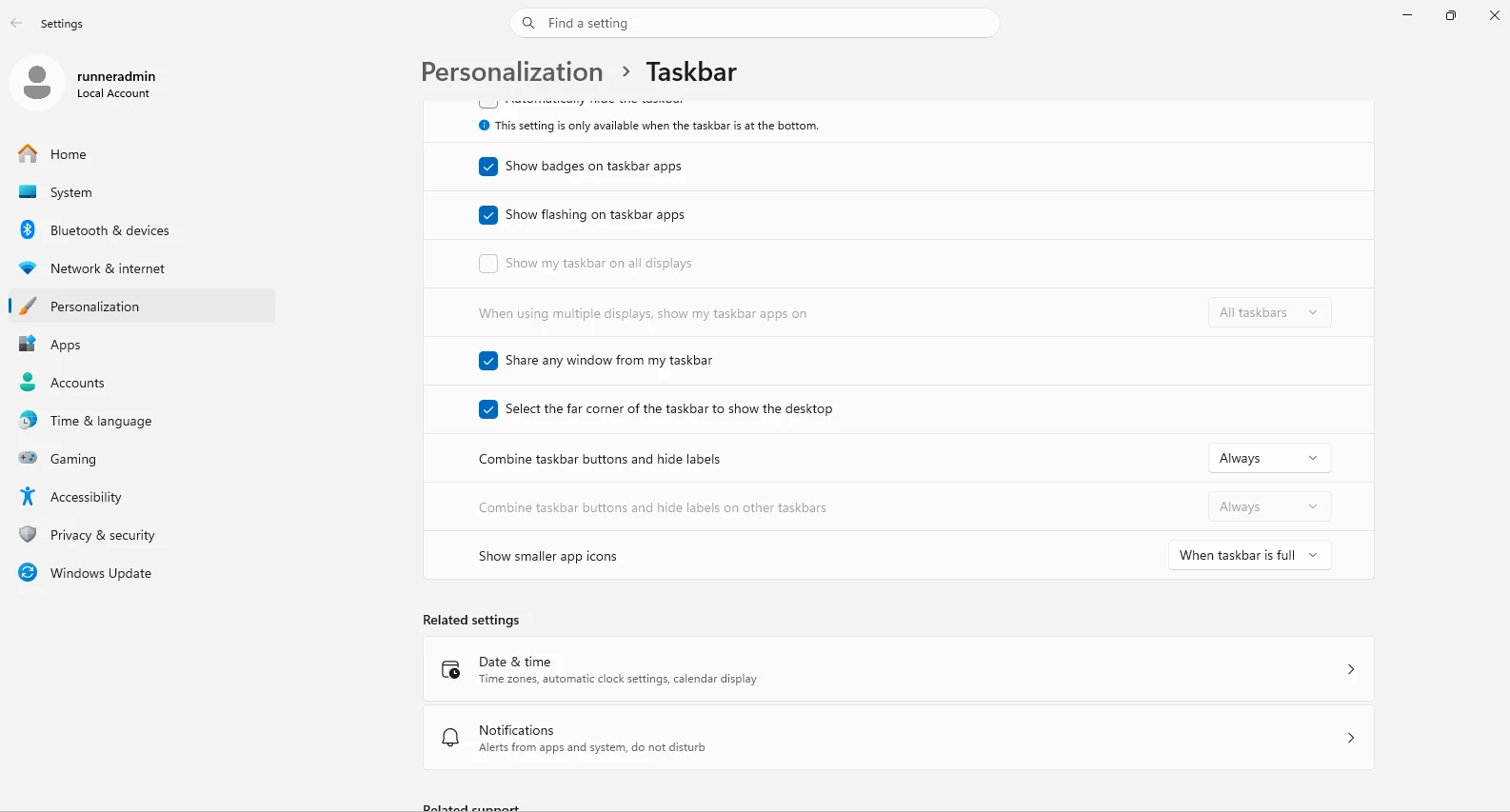
Open Settings › Personalization › Taskbar › Taskbar behaviors and set Combine taskbar buttons and hide labels to Never. There is a separate setting for the taskbars on other monitors. RetroBar never combines buttons at all: every window gets its own button with its title.
Windows 11's own setting
Microsoft added the “never combined” mode to Windows 11 in September 2023: “In this mode, you can view application windows and their labels on the taskbar separately,” with “a separate setting for turning this on for other taskbars when you use multiple monitors” (Microsoft).
Open the taskbar settings
Right-click an empty part of the taskbar › Taskbar settings, and open Taskbar behaviors.
Choose Never
Set Combine taskbar buttons and hide labels to Never. Set the option below it for other taskbars too if you use several monitors.
Windows still shows the buttons in its Windows 11 style, centred by default, with the program icon and a shortened title.
RetroBar: one button per window, always
RetroBar works like the taskbar of Windows 95 to XP by default: one rectangular button per window, left-aligned, with the icon and the window title. There is nothing to switch on, and no combining option in 1.22.122.

To fit more buttons with readable titles, give the taskbar two or more rows. Hover over a button to see a title that is cut off, and drag buttons to change their order.
Side by side
| Windows 11, Never combine | RetroBar | |
|---|---|---|
| One button per window | Yes | Yes |
| Window titles | Yes | Yes |
| Look | Windows 11 | Windows 95, 98, 2000, XP or Vista |
| Several rows | No | Yes |
| Reorder buttons by dragging | Yes | Yes |
| Install anything | No | Yes, free |
Questions
Can RetroBar group windows like Windows 7?
No. RetroBar 1.22.122 always shows one button per window, as Windows 95 to XP did by default.
I do not see the Combine option in Windows 11.
It arrived with the September 2023 update for Windows 11 22H2. On an up-to-date Windows 11 it is under Taskbar behaviors.
Keep going
Found something out of date or wrong? Tell us at hello@retrobar.dev and we will fix it.