Reference
RetroBar settings, all 41 of them
Right-click an empty part of the taskbar and choose Properties to change RetroBar's settings. Changes apply at once. Everything is saved in %LOCALAPPDATA%\RetroBar\settings.json, including 41 options of which 33 have a checkbox or menu somewhere in RetroBar. This page explains every one, with the exact name and values to use in the file.
On this page 5 sections
Short answer
Where are RetroBar's settings, and how do I access them?
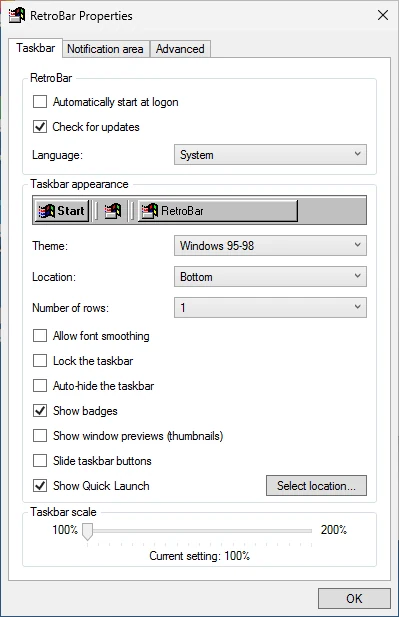
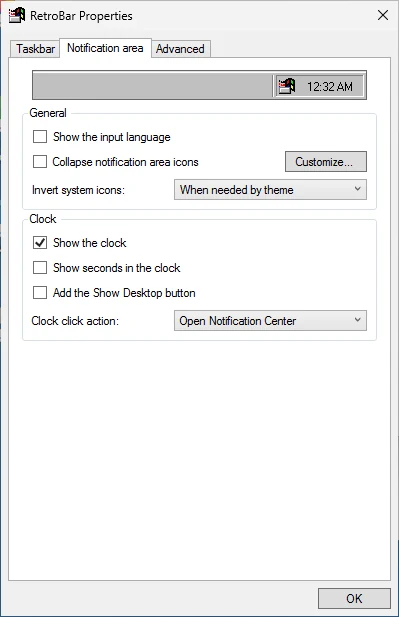
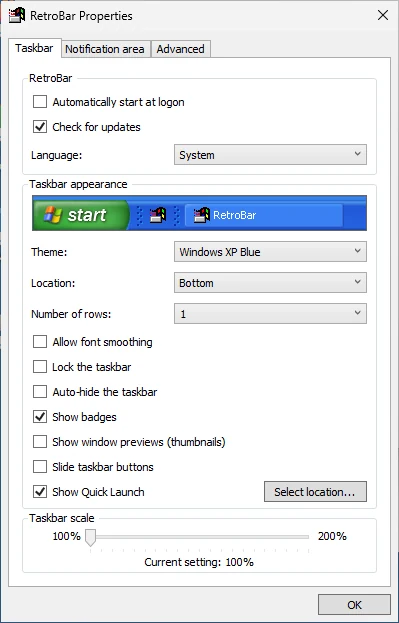
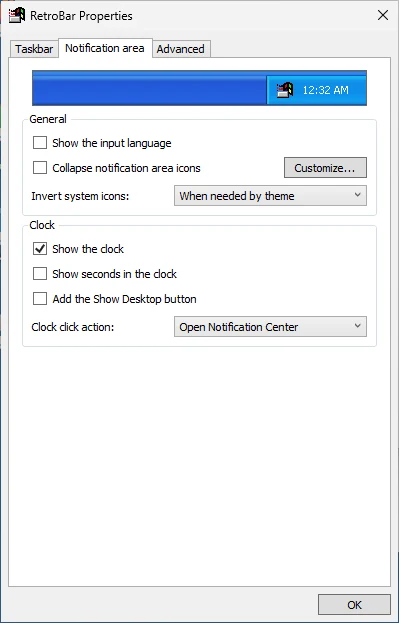
In RetroBar Properties: right-click an empty spot on the taskbar, then click Properties. It has three tabs: Taskbar, Notification area and Advanced.
On disk: %LOCALAPPDATA%\RetroBar\settings.json (paste it into File Explorer's address bar). RetroBar reads the file once, when it starts, and rewrites it whenever you change something in Properties. So close RetroBar before you edit the file by hand, or your change will be overwritten.
The Properties window
RetroBar Properties follows the look of the theme you are using. The window title is “RetroBar Properties” in English, and every label is translated in the 47 languages RetroBar ships.



settings.json
RetroBar has kept its settings in a JSON file since version 1.14. Older versions used the .NET user settings store and migrated it on first start (the MigrationPerformed flag in the file records that). Each setting is one property; booleans are true or false, and options with a fixed list of choices are stored as a number (the position in the list, starting at 0). That is why "Edge": 3 means the bottom of the screen.
{
  "Language": "System",
  "Theme": "Windows 95-98",
  "ShowInputLanguage": false,
  "ShowClock": true,
  "ShowDesktopButton": false,
  "PeekAtDesktop": false,
  "ShowMultiMon": false,
  "ShowQuickLaunch": true,
  "QuickLaunchPath": "%appdata%\\Microsoft\\Internet Explorer\\Quick Launch\\User Pinned\\TaskBar",
  "CollapseNotifyIcons": false,
  "InvertNotifyIcons": [
    "7820ae78-23e3-4229-82c1-e41cb67d5b9c",
    "7820ae81-23e3-4229-82c1-e41cb67d5b9c",
    "7820ae82-23e3-4229-82c1-e41cb67d5b9c",
    "7820ae77-23e3-4229-82c1-e41cb67d5b9c",
    "7820ae83-23e3-4229-82c1-e41cb67d5b9c",
    "7820ae74-23e3-4229-82c1-e41cb67d5b9c",
    "7820ae75-23e3-4229-82c1-e41cb67d5b9c",
    "7820ae73-23e3-4229-82c1-e41cb67d5b9c"
  ],
  "NotifyIconBehaviors": [
    {
      "Identifier": "7820ae76-23e3-4229-82c1-e41cb67d5b9c",
      "Behavior": 2
    },
    {
      "Identifier": "7820ae75-23e3-4229-82c1-e41cb67d5b9c",
      "Behavior": 2
    },
    {
      "Identifier": "7820ae74-23e3-4229-82c1-e41cb67d5b9c",
      "Behavior": 2
    },
    {
      "Identifier": "7820ae73-23e3-4229-82c1-e41cb67d5b9c",
      "Behavior": 2
    }
  ],
  "NotifyIconOrder": [],
  "AllowFontSmoothing": false,
  "AllowFontSmoothingMenu": true,
  "UseSoftwareRendering": false,
  "Edge": 3,
  "RowCount": 1,
  "RowLimit": 5,
  "TaskbarWidth": 1,
  "TaskbarWidthLimit": 7,
  "QuickLaunchOrder": [],
  "ShowTaskThumbnails": false,
  "MultiMonMode": 0,
  "TaskbarScale": 1,
  "DebugLogging": false,
  "AutoHide": false,
  "LockTaskbar": false,
  "InvertIconsMode": 0,
  "ShowTaskBadges": true,
  "TaskMiddleClickAction": 1,
  "ClockClickAction": 3,
  "CheckForUpdates": true,
  "ShowExitMenuItem": true,
  "ShowEndTaskButton": false,
  "ShowStartButtonMultiMon": false,
  "AutoHideTransparent": false,
  "SlideTaskbarButtons": false,
  "ShowClockSeconds": false,
  "WinNumHotkeysAction": 0,
  "AllowBlurBehind": true,
  "PinnedNotifyIcons": []
}Every setting
Grouped the way the Properties window groups them, then the ones that live in right-click menus, and finally the ones that only exist in the file. “Since” is the first release that had the setting.
Taskbar tab14
Language
LanguageThe language of RetroBar's menus, tooltips and Properties window. "System" follows your Windows display language and falls back to English.
Theme
ThemeThe look of the taskbar. The list shows the built-in themes plus any .xaml file in a Themes folder (see Custom themes). Every theme is loaded on top of the base System theme.
Show Quick Launch
ShowQuickLaunchShows the Quick Launch toolbar next to the Start button. By default it shows the shortcuts in the folder Windows uses for pinned taskbar apps, so your pinned apps appear there.
Allow font smoothing
AllowFontSmoothingOff by default, so taskbar text is drawn without anti-aliasing, like old Windows. Turn it on for smoother (ClearType-style) text.
Location
EdgeWhich screen edge the taskbar sits on: left, top, right or bottom. Works on Windows 11 too, where the Windows taskbar itself could only be at the bottom until 2026.
0- Left
1- Top
2- Right
3- Bottom
Number of rows
RowCountHow many rows of task buttons the taskbar has when it is at the top or bottom (1 to RowLimit). You can also drag the edge of an unlocked taskbar.
Taskbar width
TaskbarWidthHow wide the taskbar is when it is on the left or right edge, in steps (1 to TaskbarWidthLimit).
Show window previews (thumbnails)
ShowTaskThumbnailsVista-style window previews when you hover a task button. Needs desktop composition (DWM).
TaskbarScale
TaskbarScaleMakes the whole taskbar bigger, from 1x to 2x in 0.05 steps, on top of Windows' own display scaling.
Auto-hide the taskbar
AutoHideThe taskbar slides away until you move the mouse to its edge.
Lock the taskbar
LockTaskbarWhen unlocked (the default), the taskbar shows grips and you can drag it to another edge or resize it. Lock it to stop accidental changes.
Show badges
ShowTaskBadgesShows app badges (overlay icons such as unread counts) on task buttons.
Check for updates
CheckForUpdatesOn by default. RetroBar fetches https://dremin.github.io/updates/retrobar.json and, if a newer version exists, adds a bold "update available" item to the taskbar's right-click menu that opens the GitHub releases page. It never downloads or installs anything itself.
Slide taskbar buttons
SlideTaskbarButtonsXP-style animation: new task buttons slide in. Only for a horizontal taskbar.
Notification area tab7
Show the input language
ShowInputLanguageShows the input language (keyboard layout) indicator next to the clock, and lets you switch layouts from it. Added in 1.15; in 1.22 the switcher became a full menu.
Show the clock
ShowClockShows or hides the clock in the notification area.
Add the Show Desktop button
ShowDesktopButtonAdds a Show Desktop button at the far end of the notification area. Click it to minimise everything; drag a file onto it to reveal the desktop (1.22).
Collapse notification area icons
CollapseNotifyIconsXP-style collapsible notification area: inactive icons hide behind an arrow button. Pick which icons stay visible with the Customize button.
Invert system icons
InvertIconsModeWhen to colour-invert white system icons so they stay visible on light themes: when the theme needs it (default on Windows 10/11), always, or never (default on Windows 7/8.1).
0- When needed by theme
1- Always
2- Never
Clock click action
ClockClickActionWhat clicking the clock opens: nothing, the Aero-style calendar, the Windows 10 calendar, or the Notification Center (default on Windows 10/11).
0- Do nothing
1- Open Aero calendar
2- Open Modern calendar
3- Open Notification Center
Show seconds in the clock
ShowClockSecondsShows seconds in the clock (added in 1.19).
Advanced tab12
Show on multiple displays
ShowMultiMonPuts a RetroBar taskbar on every monitor, not only the primary one.
Allow font smoothing in menus
AllowFontSmoothingMenuThe same choice for right-click menus, separate from the taskbar since 1.22. On by default.
Use software rendering
UseSoftwareRenderingDraws RetroBar without the graphics card (WPF software rendering). Try it if the taskbar flickers, goes black or shows glitches with your GPU driver.
Show tasks on
MultiMonModeWith taskbars on several monitors: show every window on every taskbar, only on the taskbar of the monitor the window is on, or on that one and the primary taskbar.
0- All taskbars
1- Same taskbar as window
2- Same taskbar as window and primary taskbar
Enable debug logging
DebugLoggingWrites detailed logs to %LOCALAPPDATA%\RetroBar\Logs. Turn it on before you report a bug.
Middle-click action
TaskMiddleClickActionWhat a middle-click on a task button does: nothing, open a new window of that app (default), or close it. Hold Shift to do the opposite of the setting.
0- Do nothing
1- Open a new instance
2- Close the task
Show Exit option in right-click menu
ShowExitMenuItemShows "Exit RetroBar" in the taskbar's right-click menu. Turn it off on shared PCs; you can still close RetroBar from Task Manager.
Show End task option in right-click menu
ShowEndTaskButtonAdds "End task" to a task button's right-click menu, to force-close a frozen app.
Show Start button on all taskbars
ShowStartButtonMultiMonWith taskbars on several monitors, shows a Start button on each of them (Windows 10 and 11).
Hide taskbar line when hidden with auto-hide
AutoHideTransparentWith auto-hide on and a transparent theme, hides the thin line that normally stays visible at the screen edge.
Win+[0-9] hotkeys action
WinNumHotkeysActionWhat Win+1 … Win+0 do: Windows default, switch to the Nth task on the RetroBar taskbar, or open the Nth Quick Launch item. RetroBar warns that once it takes these hotkeys, Windows only gets them back after you sign out and in again.
0- Windows default
1- Switch tasks
2- Open Quick Launch item
Allow blur behind transparent taskbar
AllowBlurBehindBlurs what is behind transparent themes (Vista Aero, Longhorn). Turn it off for a clear, unblurred glass (new in 1.22).
Right-click menus1
Peek at desktop
PeekAtDesktopWhen the Show Desktop button is on, hovering it previews the desktop (Aero Peek). Only works when desktop composition is on. Toggle it from the Show Desktop button's right-click menu.
Only in settings.json7
QuickLaunchPath
QuickLaunchPathThe folder Quick Launch shows. Default: %appdata%\Microsoft\Internet Explorer\Quick Launch\User Pinned\TaskBar (your pinned taskbar apps). Change it with the "Select location" button next to Show Quick Launch.
InvertNotifyIcons
InvertNotifyIconsWhich system icons (volume, network, power and so on) are colour-inverted. Set per icon in the notification area Customize window.
NotifyIconBehaviors
NotifyIconBehaviorsPer-icon rule for the collapsible notification area: hide when inactive, always hide, always show, or remove. Set in the Customize window. By default Health, Power, Network and Volume always show.
NotifyIconOrder
NotifyIconOrderThe order of notification area icons after you drag them around (new in 1.22).
RowLimit
RowLimitThe maximum for Number of rows (default 5). Not in the Properties window; edit settings.json while RetroBar is closed to change it.
TaskbarWidthLimit
TaskbarWidthLimitThe maximum for Taskbar width (default 7). Not in the Properties window.
QuickLaunchOrder
QuickLaunchOrderThe order of Quick Launch shortcuts after you drag them around.
Coming in the next release
6 settings are already in RetroBar's source code on the master branch (53 commits ahead of 1.22.122, checked 2026-10-30). They are not in 1.22.122: adding them to your settings.json today does nothing. Expect them in the next release (master calls it 1.23).
| settings.json | Where it will be | Value · default | What it does |
|---|---|---|---|
OverrideClockFormat | Notification area › Clock › “Custom clock format” | true/false · false | Turns on your own clock format. While it is on, “Show seconds in the clock” is greyed out, because the format decides whether seconds appear. source |
ClockFormat | Notification area › Clock › the box next to “Custom clock format” | text · "ddd MMM d h:mm:ss tt" | A .NET custom date and time format string, such as HH:mm or ddd h:mm tt. Type \n for a line break, which is useful with two or more taskbar rows. The help button next to it opens Microsoft's list of format codes. Themes that set their own clock format can ignore it. source |
OverrideAMPMDesignators | Notification area › Clock › “Custom designators” | true/false · false | Replaces the AM and PM text that Windows uses for your region. source |
AMDesignator | Notification area › Clock › “AM:” | text · "a.m." | The text shown for morning times when custom designators are on. Leave it empty to keep Windows' own. source |
PMDesignator | Notification area › Clock › “PM:” | text · "p.m." | The text shown for afternoon and evening times when custom designators are on. Leave it empty to keep Windows' own. source |
TaskWheelAction | Advanced › Behavior › “Mouse wheel action” | number: 0 Do nothing, 1 Show/hide window · 0 | Scroll up over a taskbar button to bring that window to the front, scroll down to minimize it. Hold Shift to scroll the task list normally instead. source |
Questions
Why did my change to settings.json disappear?
RetroBar was running. It keeps its settings in memory and writes the whole file again whenever anything changes, including when you drag the taskbar. Exit RetroBar first (right-click the taskbar, Exit RetroBar), edit the file, then start it again.
How do I reset RetroBar to its default settings?
Exit RetroBar, delete %LOCALAPPDATA%\RetroBar\settings.json, and start RetroBar. It creates a fresh file with the defaults listed on this page.
Can I set the theme from the command line?
Not with RetroBar itself: it has no command-line switches. Use the PowerShell script from the Settings Builder, which edits settings.json while RetroBar is closed.
How do I make RetroBar start with Windows (at startup)?
Tick Automatically start at logon on the Taskbar tab, or choose the autostart option in the installer. Both write a RetroBar value under HKEY_CURRENT_USER\Software\Microsoft\Windows\CurrentVersion\Run; uninstalling removes it. It is not stored in settings.json. If it still does not start, see troubleshooting.
How do I pin apps to RetroBar?
RetroBar has no pinned task buttons; pinned programs live in Quick Launch, next to the Start button. By default Quick Launch shows the programs pinned to the Windows taskbar, because it reads the same folder (the QuickLaunchPath setting). Drag a program or shortcut onto Quick Launch to add it (details).
Keep going
Found something out of date or wrong? Tell us at hello@retrobar.dev and we will fix it.